

Viewing Your Contacts
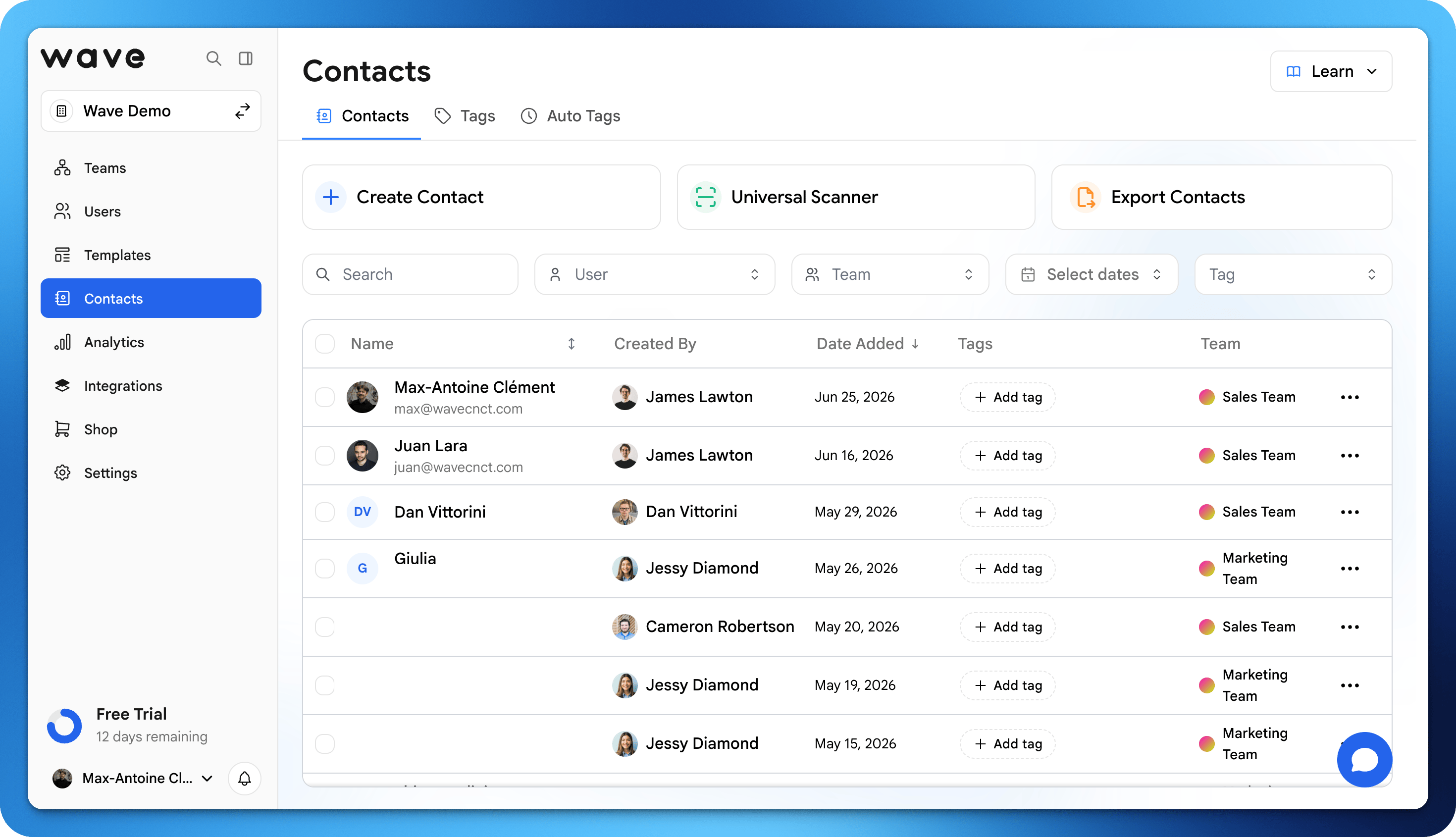
Navigate to the Contacts tab in your Wave Connect dashboard to see everyone who has shared their information with you. Each contact entry includes:- Name and contact details they shared
- Date and time of the exchange
- Tags you’ve applied
- Notes you’ve added
Searching Contacts
Use the search bar to quickly find contacts by name, company, email, or any other field. You can also filter contacts by:- Tags: Filter by custom tags you’ve created
- Date: Find contacts from specific time periods
- Source: See where the exchange happened (NFC, QR code, etc.)
Editing Contact Details
You can update a contact’s information at any time:1
Select a contact
Click on the contact you want to edit.
2
Update their information
Modify any field: name, email, phone, company, or notes.
3
Save changes
Your updates are saved and synced across your account.
Saving Contacts to Your Device
You can export individual contacts directly to your phone’s address book. Open a contact and tap Save to Device to add them to your phone contacts.Export Contacts
Export your Wave Connect contacts to a CSV file for importing into your CRM, email marketing tools, spreadsheets, or any other platform.1
Go to Contacts
Open the Contacts tab in your Wave Connect dashboard.
2
Select contacts
Choose specific contacts or select all. You can filter by tags before exporting.
3
Click Export
Choose the CSV export option.
4
Download the file
A CSV file with all contact fields is downloaded to your device.