

Available on the Teams and Enterprise plans.
What an Event Includes
Every event has:- Name: what the event is called
- Location: where the event takes place
- Date range: the start and end dates the event runs
- Picture: a cover image for the event
- Description: a rich description with the details that matter
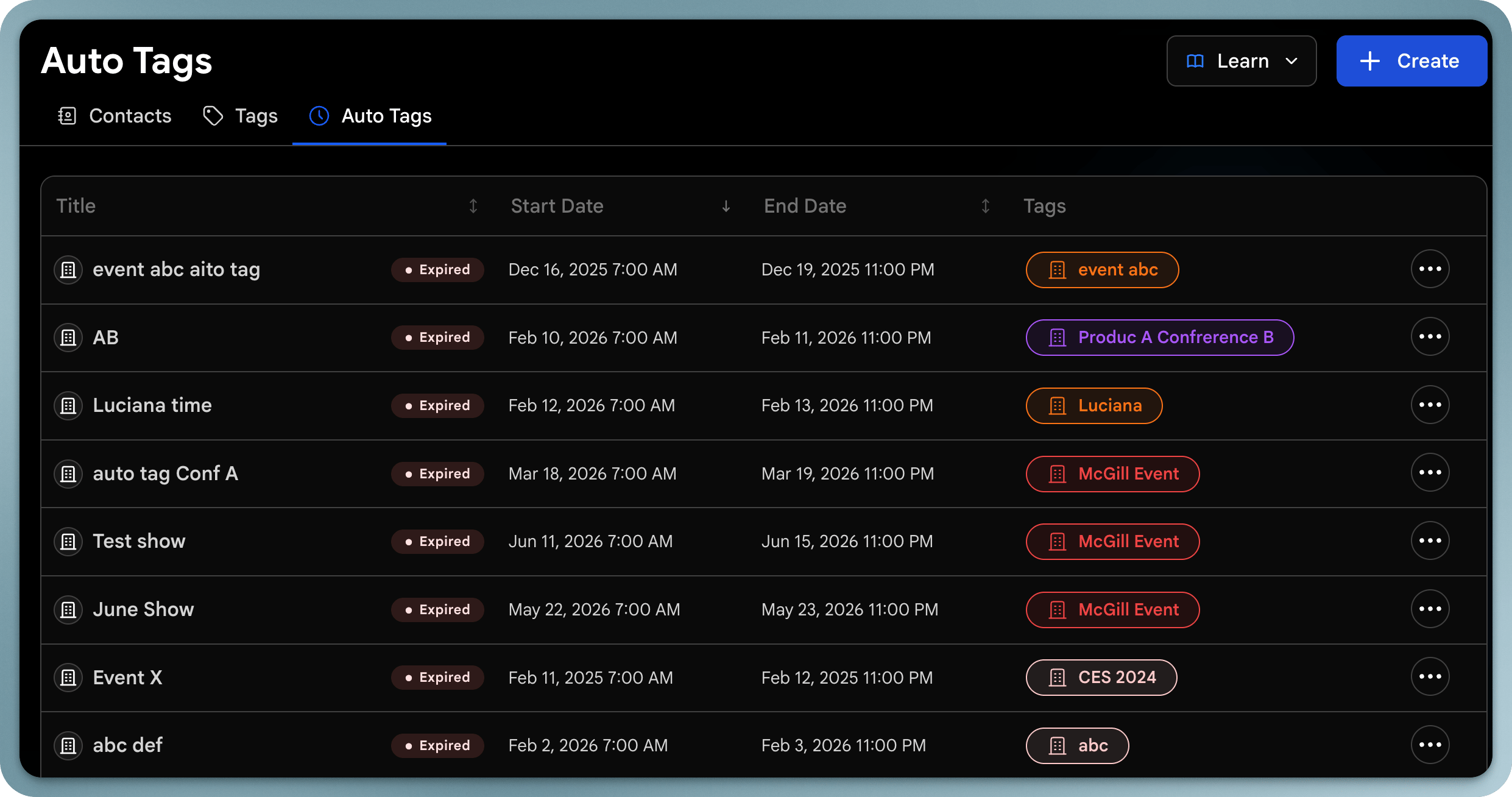
- Auto-tag: an optional tag automatically applied to contacts captured during the event
Creating an Event
1
Open Events
Go to Contacts and open Events.
2
Create event
Click Create event.
3
Add the details
Enter the event name, location, date range, cover picture, and description.
4
Turn on auto-tagging
Leave the auto-tag toggle on to automatically tag every contact captured during the event. By default, the tag uses the event’s name.
5
Save
Save the event. While it’s live, new contacts are tagged automatically.
The Events Page
Events are shown as cards, grouped by status:- Active: events happening now
- Upcoming: events that haven’t started yet
- Past: events that have ended
Event Details
Open an event to see everything about it in one place:- Analytics: performance for the event’s date range
- Contacts: every contact captured with the event’s tag
- Details: edit the event’s name, date range, location, tag, and other details at any time
Best practices
- Keep auto-tagging on so leads are sorted as you collect them
- Use a clear, recognizable name: it becomes the tag
- Review an event’s contacts and analytics afterward to measure results