

Downloading your QR code
Open the Share dialog from your profile and tap Download QR Code to save it as an image file. Use it in:- Printed materials (brochures, flyers, posters)
- Presentations and slide decks
- Name badges and lanyards
- Video-call backgrounds
Linking NFC card QR codes
If your Wave Connect NFC card has a printed QR code on it, you can link it to your profile so it always points to your latest information. See How do I link the QR codes on my Wave Connect NFC card? for details.Offline sharing
Wave Connect lets you share your digital business card without an internet connection. NFC: the NFC chip on your Wave Connect card stores your profile URL. Tapping works offline; the recipient’s phone saves the URL and opens your profile once they’re back online. Profile QR code: your QR code is cached locally in the Wave Connect app. Open the app while offline, display your QR code, and the recipient can scan it. The link opens on their device once they connect.Offline QR code
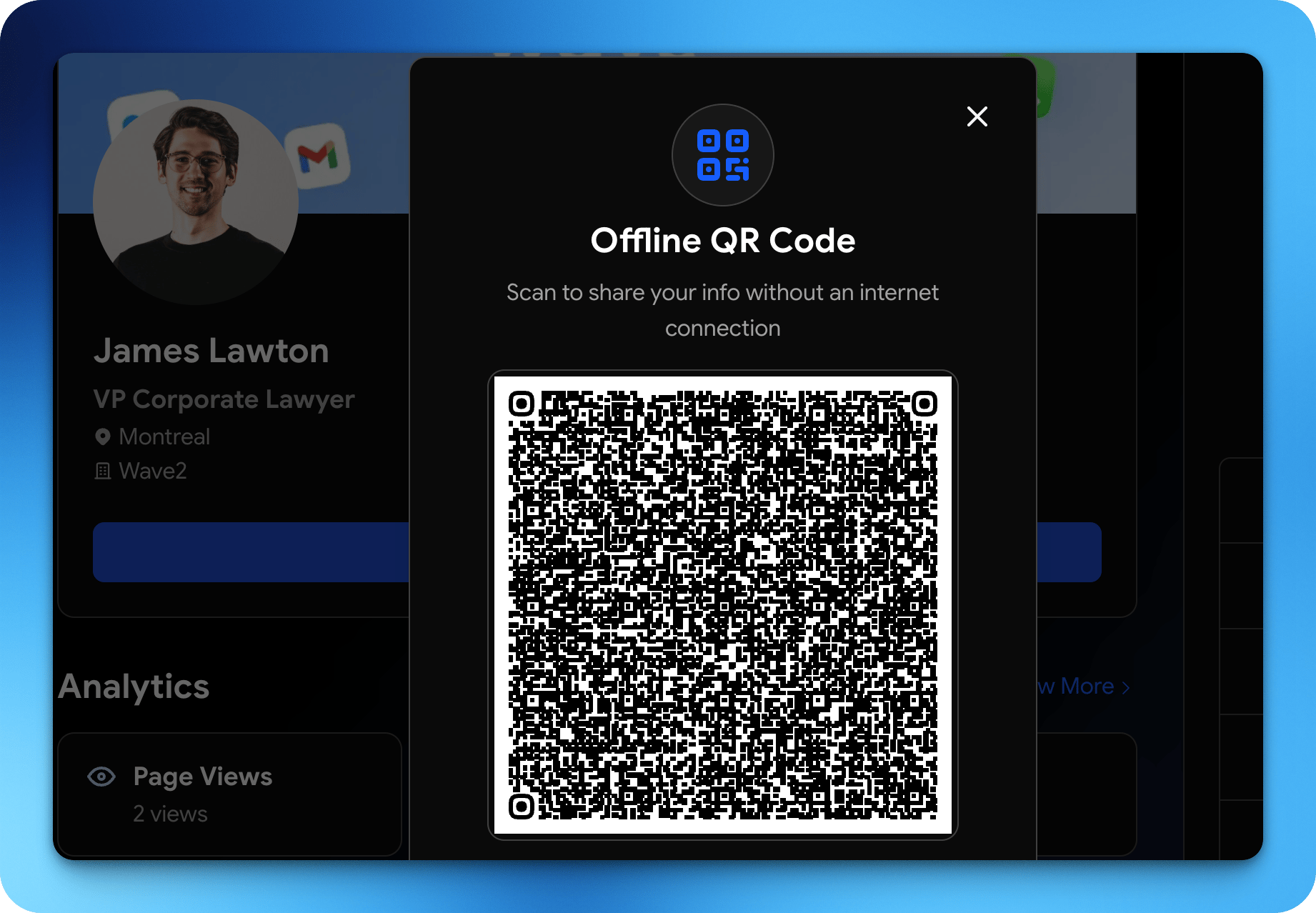
The profile QR code above still needs the recipient to be online to open your profile. For places where neither of you has a connection, such as a trade show floor or a flight, use the Offline QR Code. Instead of a link, this QR code contains your contact details themselves, as a vCard. When someone scans it, their phone offers to save you as a contact right away. Neither device needs an internet connection.1
Open the Share dialog
Tap the share button on your profile and choose Offline QR Code.
2
Show or save it
Display the code labeled Scan to share your info without an internet connection, or tap Download to save it as a PNG image.
The offline QR code is a snapshot of your details. Download it again after you update your profile. Because nothing passes through Wave Connect, offline scans are not recorded in your analytics or contacts.