

Available on the Teams and Enterprise plans.
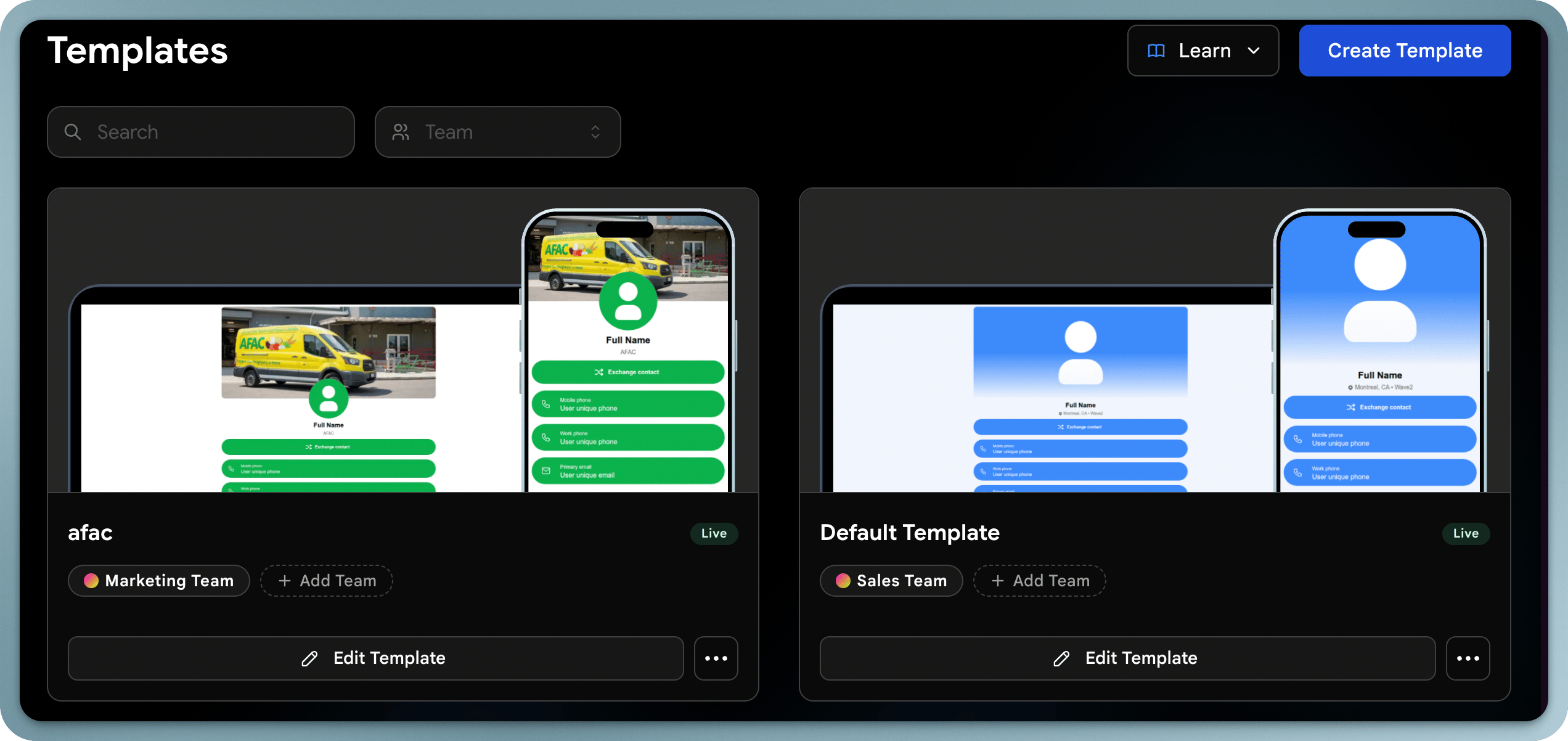
How Templates Work
A template defines:- Content: Which sections appear on the card (links, social media, files, etc.)
- About: Job title, company, location, and calendar (Calendly) link
- Appearance: Colors, fonts, and layout of the digital business card
- Lead form: The contact exchange form recipients see
- Digital Wallet: Apple Wallet and Google Wallet appearance
- Email Signature: The email signature applied across your template
- Locked fields: Fields that users cannot edit (ensuring consistency)
Template vs. User Profile
Creating a Template
1
Go to Templates
In your admin dashboard, navigate to the Templates section.
2
Click Create Template
Start building a new template.
3
Name your template
Give it a descriptive name (e.g., “Sales Team”, “Executive”, “Event Staff”).
4
Assign it to a team
Select the team that will use this template.
5
Confirm
Apply the template to your team.
Editing a Template
Editing a template updates the cards for all users assigned to it — making it easy to roll out design changes or content updates across your team.Content
Define what content blocks appear on the card: links, social media profiles, files, documents, and videos.About
Set the company description, tagline, or supporting text shown in the About section of the card.Appearance
Configure the visual design: profile layout, colors, fonts, background image, and logo.Lead Form
Customize the contact exchange form: choose which fields to collect (name, email, phone, company, etc.).Wallet Card
Control how the card appears when saved to Apple Wallet or Google Wallet.Email Signature
Set the default email signature design applied across your team.Learn More
Locked Fields
Lock fields to keep profiles consistent.
Unique Fields
Understand unique vs. locked fields.