

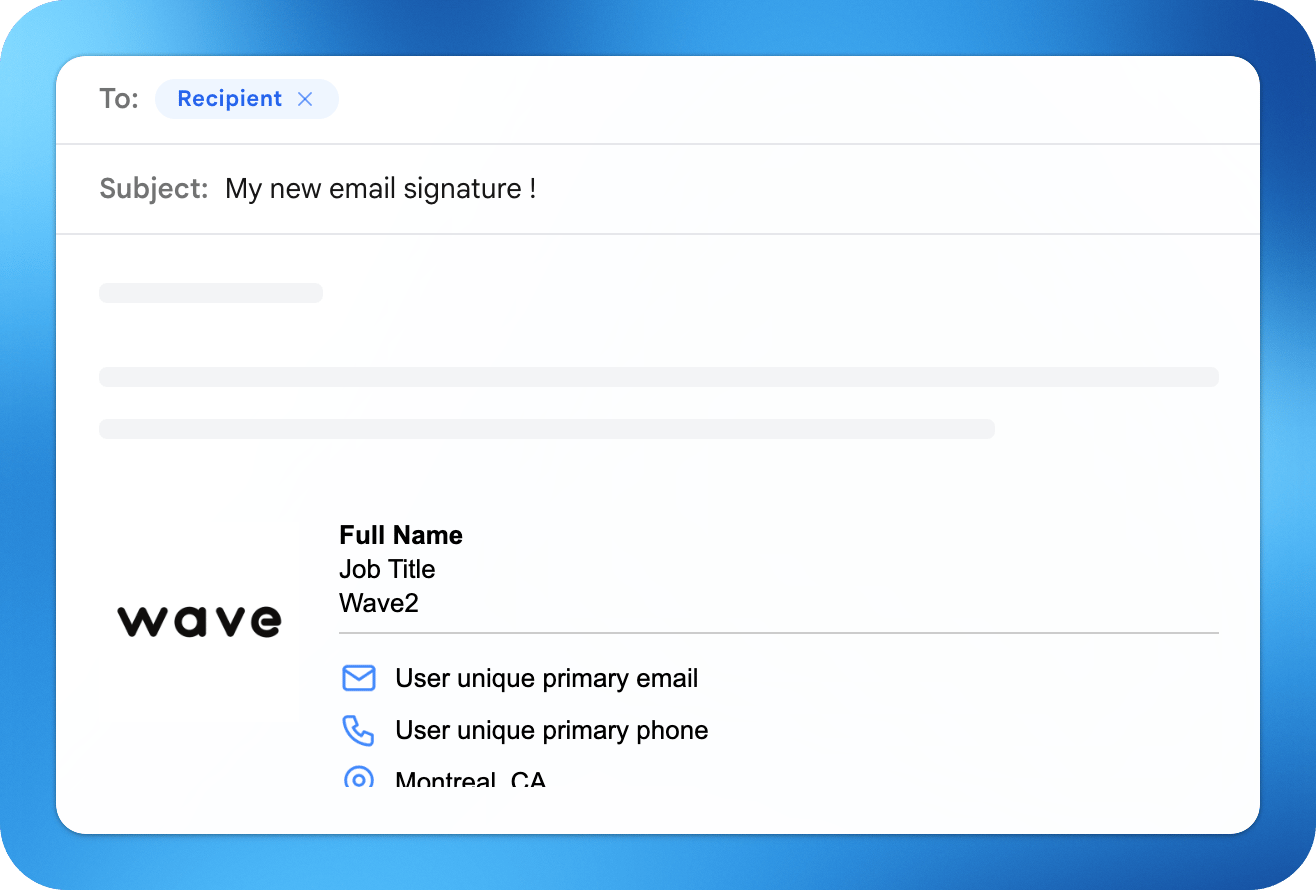
- Generate a signature from your profile
- Add it to Gmail or Outlook
- Sync and manage signatures across your team
How to Create an Email Signature
To create your email signature first choose your layout and fill out your personal details, add your socials and customize your signature.Add Signature to Outlook
You can install your Wave email signature in Outlook using either a one-click install or manual setup. Option 1: One-click install (recommended)- Create your signature in Wave
- Click Install to Outlook
- Follow the prompts
- Copy your signature (HTML) from Wave
- Open Outlook
- Go to:
- Settings → Mail → Compose and reply (web)
- OR File → Options → Mail → Signatures (desktop)
- Paste your signature
- Set it as default for:
- New emails
- Replies/forwards
- Save changes
Add Signature to Gmail
Wave supports one-click installation for Gmail, making setup extremely fast. Option 1: One-click install (recommended)- Create your signature in Wave
- Click Install to Gmail
- Authorize your Google account
- Your signature is automatically set as default - Follow the prompts
- Copy your signature from Wave
- Open Gmail
- Go to Settings → See all settings → Signature
- Paste your signature
- Set it as default for:
- New emails
- Replies/forwards
- Save changes
Sync Outlook Signature to All Members
Wave allows teams to manage and deploy email signatures centrally.How Team Sync Works
With Wave Teams:- Signatures are generated from each member’s profile
- Brand elements (logo, colors, layout) are standardized
- Admins can push updates to everyone instantly
How to Sync Signatures Across Your Team
- Upload or add team members
- Create a signature template
- Lock brand elements (optional)
- Deploy signatures to all users
- Push updates anytime