

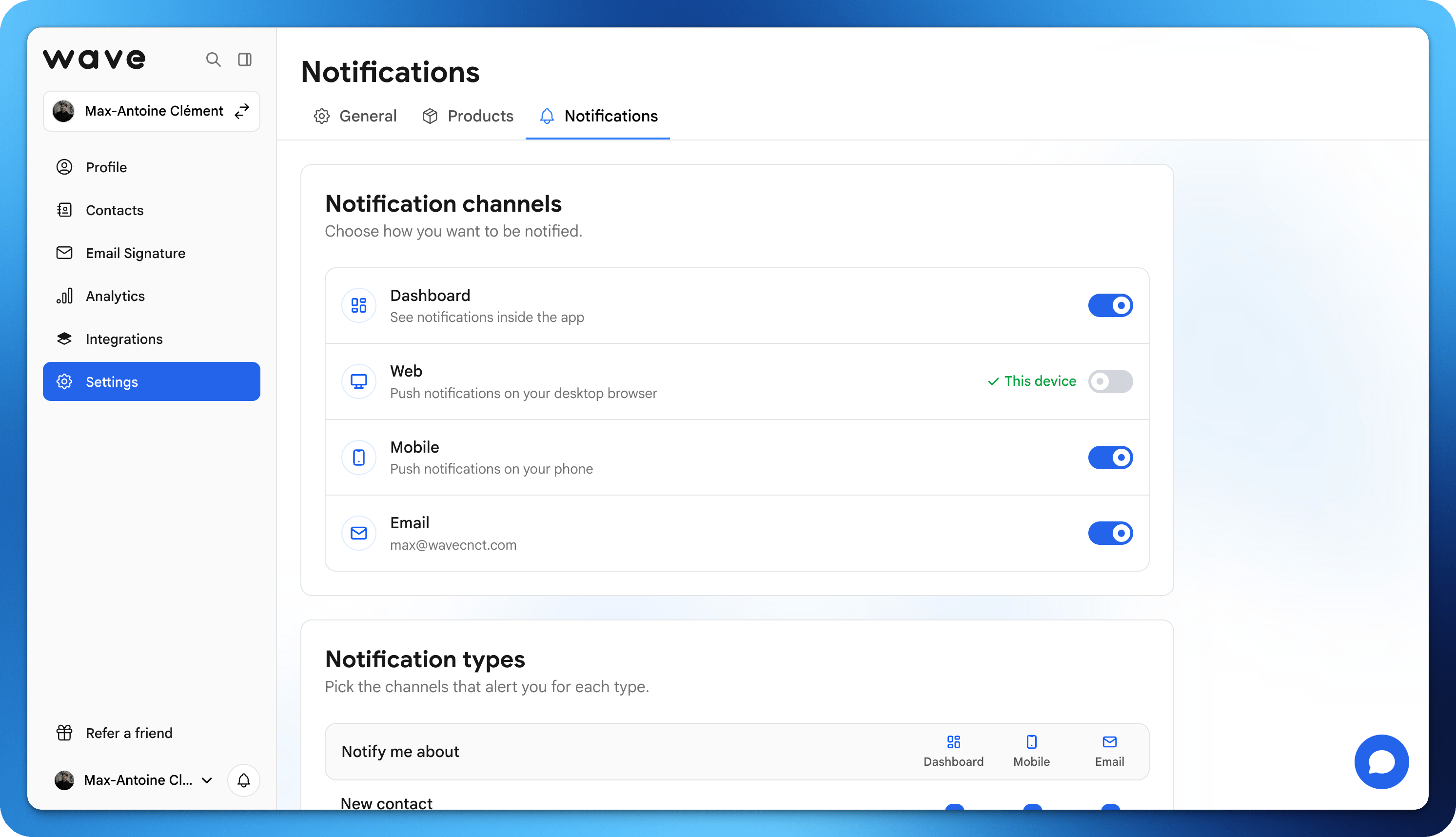
Channels
The Notification channels card lists every way Wave Connect can reach you. Switch a channel on or off to control all notifications sent through it.
Web and Mobile stay locked until at least one device is registered. Open the Notifications page on that device and click Register this device. Once registered, the row shows This device and the switch becomes available. You can register several devices; turning a channel off keeps them registered, so turning it back on works everywhere right away.
On a phone, the page only shows the Mobile and Email channels. Open Wave Connect on a desktop for the full set of options.
Notification types
The Notification types card is a grid: one row per notification, one column per channel you have turned on. Tick the boxes to pick where each type is delivered.
A channel that is switched off in the card above is greyed out here. Turn it on first to pick notifications for it.
Mobile push setup
To receive Mobile notifications:- Install the Wave Connect app: App Store (iPhone) or Google Play (Android)
- Allow notifications when prompted on first launch
- In the app, go to Settings → Notifications and click Register this device if the Mobile row is still locked
The notification bell
The bell icon at the bottom of the dashboard sidebar shows your Dashboard notifications. A badge on the bell counts the unread ones.- Click a notification to open the related contact, referral, or page. It is marked as read.
- Hover over a notification and click the cross to delete it.
- Mark all as read clears the unread badge.
- The gear icon opens Settings → Notifications.
- Older notifications load with Load more.