George El-Hage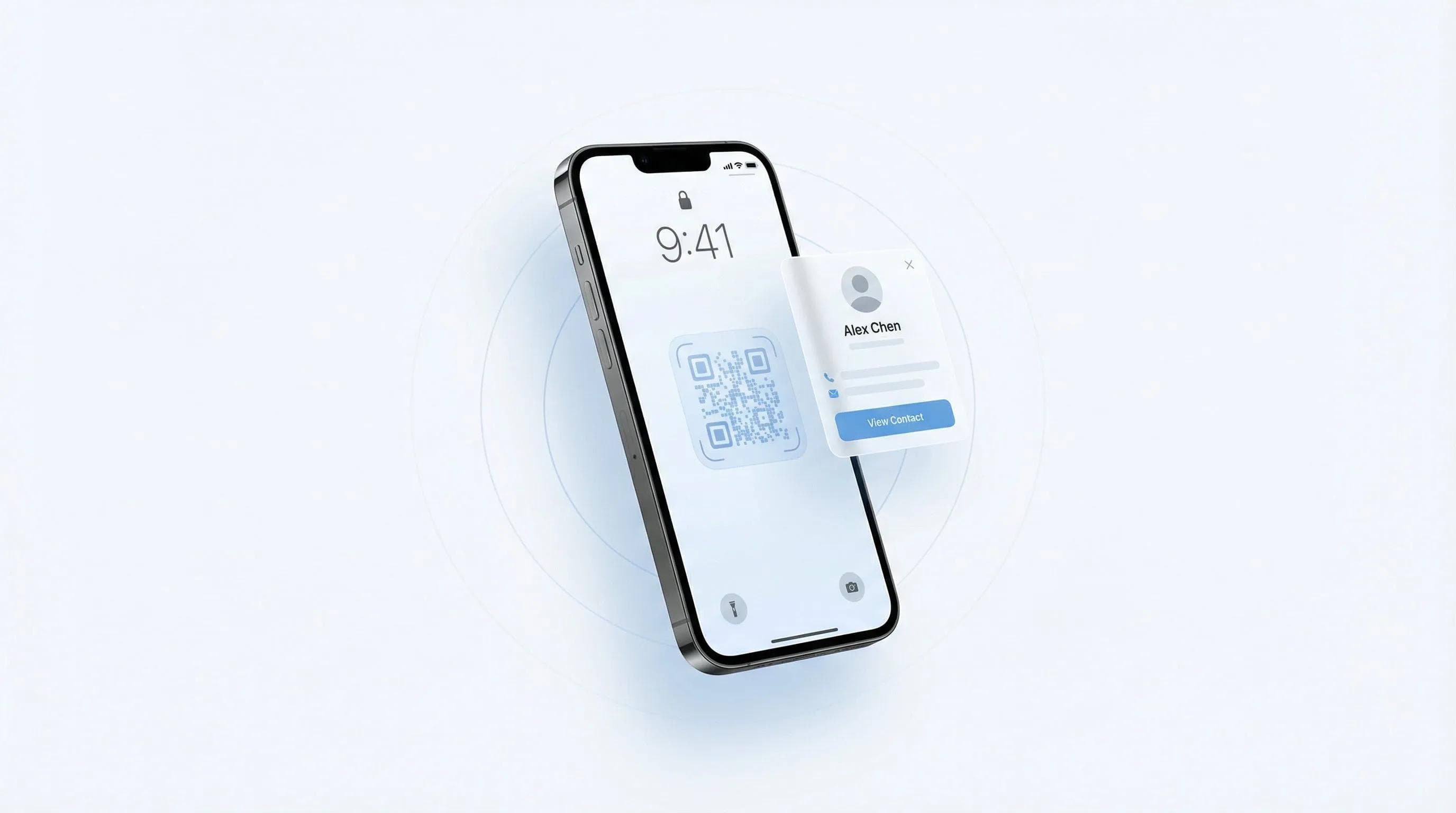
Zu wissen, wie man eine digitale Visitenkarte zum iPhone-Sperrbildschirm hinzufügt, ist eine der häufigsten Fragen, die mir Profis stellen, die sofort netzwerken wollen. Nachdem ich jede Methode auf verschiedenen iOS-Versionen getestet habe, zeige ich Ihnen genau, was funktioniert.
In dieser Anleitung lernen Sie drei bewährte Methoden kennen, um direkt vom Sperrbildschirm auf Ihre digitale Visitenkarte zuzugreifen, plus Tipps bei Einrichtungsproblemen. Ich habe alle Methoden persönlich mit der kostenlosen digitalen Visitenkarte von Wave Connect und anderen Plattformen unter iOS 16, 17 und 18 getestet.
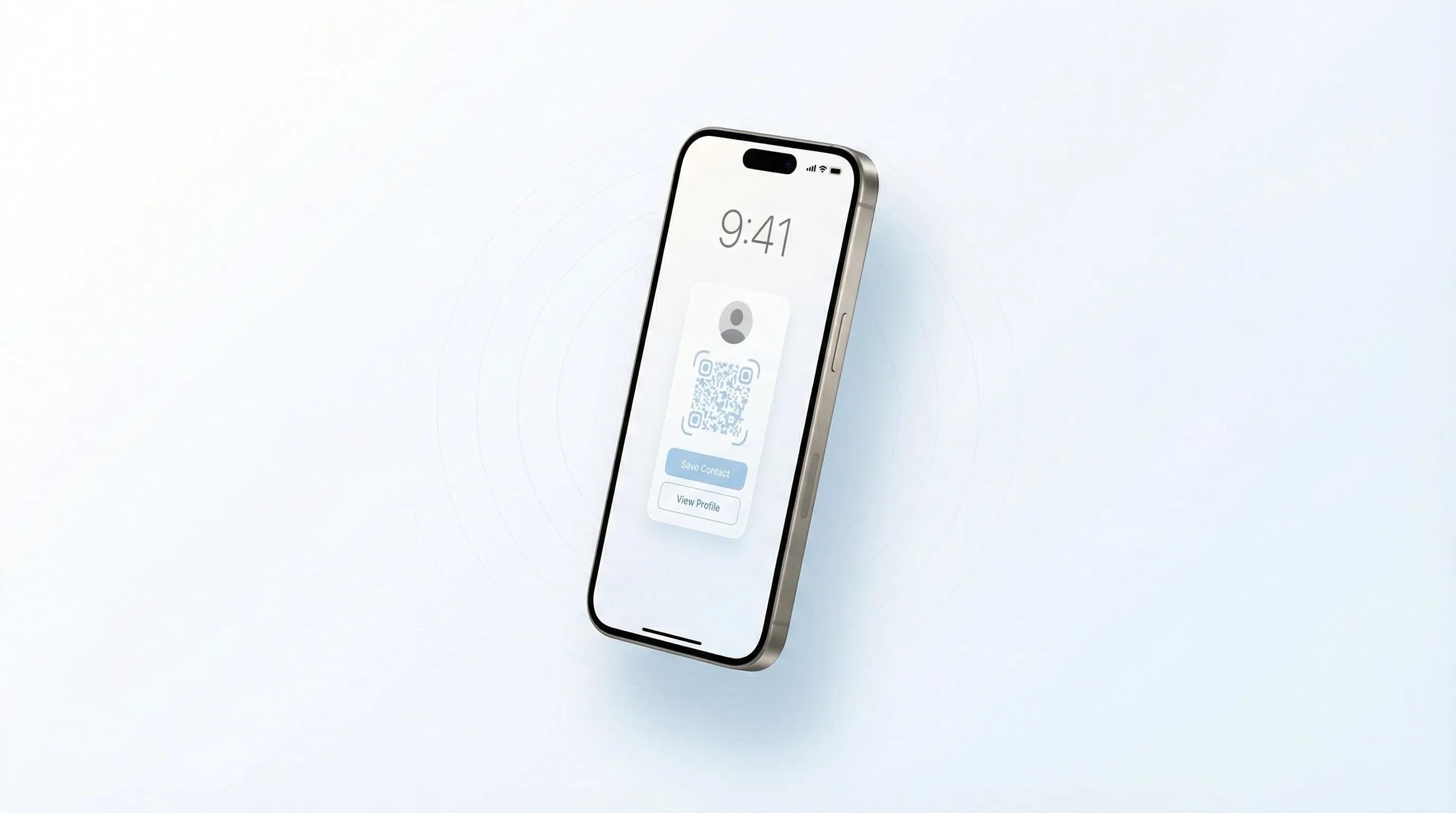
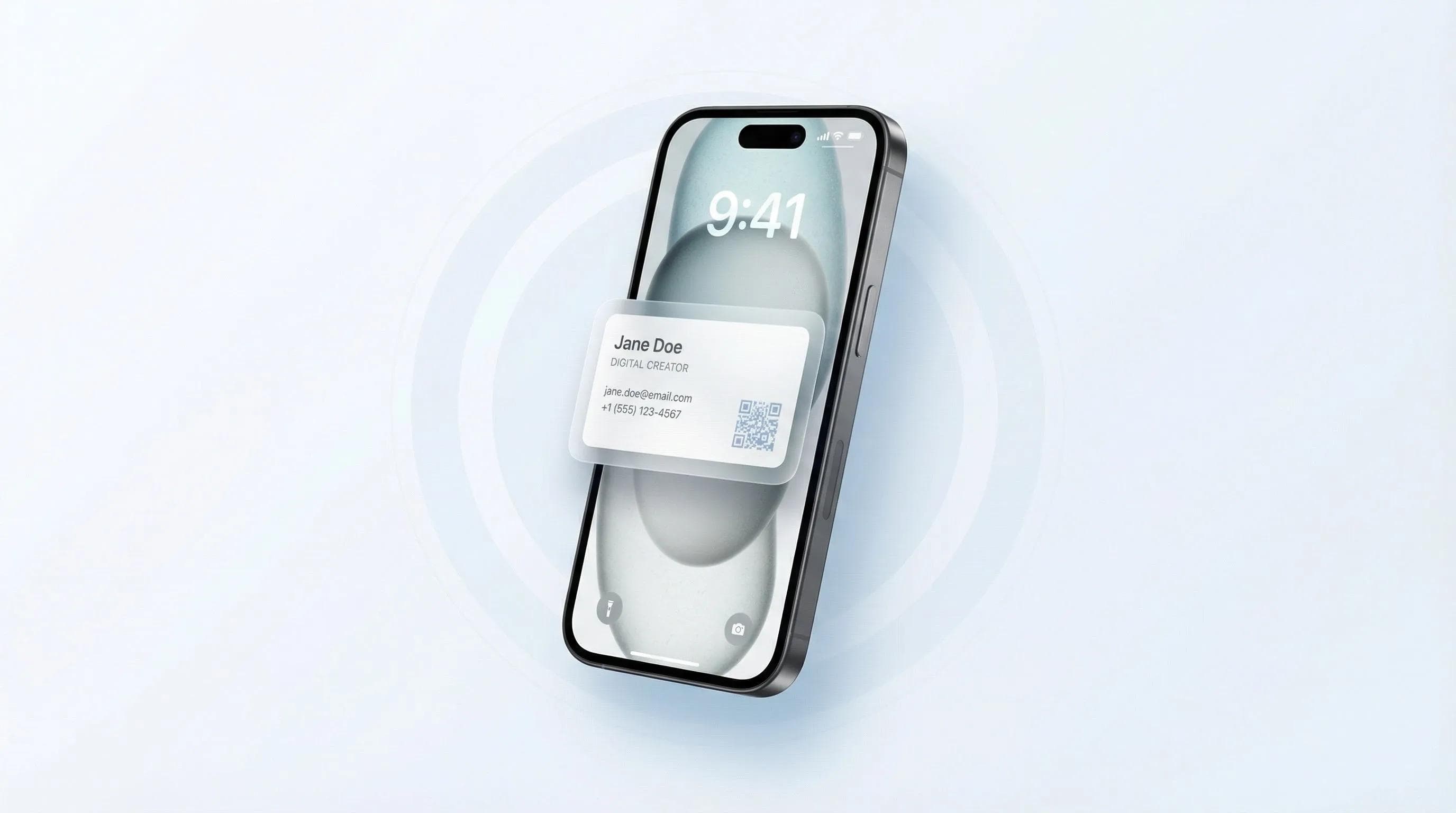
Mit einer digitalen Visitenkarte auf dem iPhone-Sperrbildschirm netzwerken Sie im Handumdrehen. Nutzen Sie die Apple Wallet-Integration, Sperrbildschirm-Widgets ab iOS 16 oder Kurzbefehle im Kontrollzentrum, um Ihre Karte in Sekundenschnelle aufzurufen und zu teilen. Wählen Sie einfach die Methode, die am besten zu Ihrer iOS-Version und Ihren Vorlieben passt.
Was Sie vor dem Start benötigen
Um eine digitale Visitenkarte auf Ihrem iPhone-Sperrbildschirm einzurichten, benötigen Sie ein iPhone mit iOS 16 oder neuer sowie eine Plattform für digitale Visitenkarten mit mobiler Integration. Die genauen Voraussetzungen hängen von der Methode ab – mit der richtigen Vorbereitung sind Sie jedoch in unter fünf Minuten startklar.
Ihre Checkliste vorab:
- iPhone-Modell: iPhone X oder neuer (für schnellen Zugriff per Face ID)
- iOS-Version: iOS 16+ für Widgets, iOS 15+ für die Wallet-Methode
- Digitale Visitenkarte: Aktives Konto bei einer Plattform mit mobiler App-Unterstützung
- Apple-ID: Angemeldet für die Apple Wallet-Integration
- 5 Minuten: Einrichtungszeit (mehr braucht es wirklich nicht)
💡 Aus meinen Tests: Ich habe den Sperrbildschirm-Zugriff letzte Woche auf fünf verschiedenen iPhones eingerichtet (im Rahmen eines Rollouts). Die Widget-Methode funktionierte unter iOS 17 und 18 einwandfrei, während Nutzer unter iOS 16 mit Apple Wallet besser fuhren.
Methode 1: Sperrbildschirm-Zugriff über Apple Wallet
Apple Wallet bietet den schnellsten Zugriff auf digitale Visitenkarten – sogar bei vollständig gesperrtem Display. Die Geste ist dieselbe wie bei Apple Pay: ein doppelter Klick auf die Seitentaste. Das ist den meisten iPhone-Nutzern bereits vertraut. Die Einrichtung dauert etwa zwei Minuten.
Schritt-für-Schritt-Einrichtung für Apple Wallet
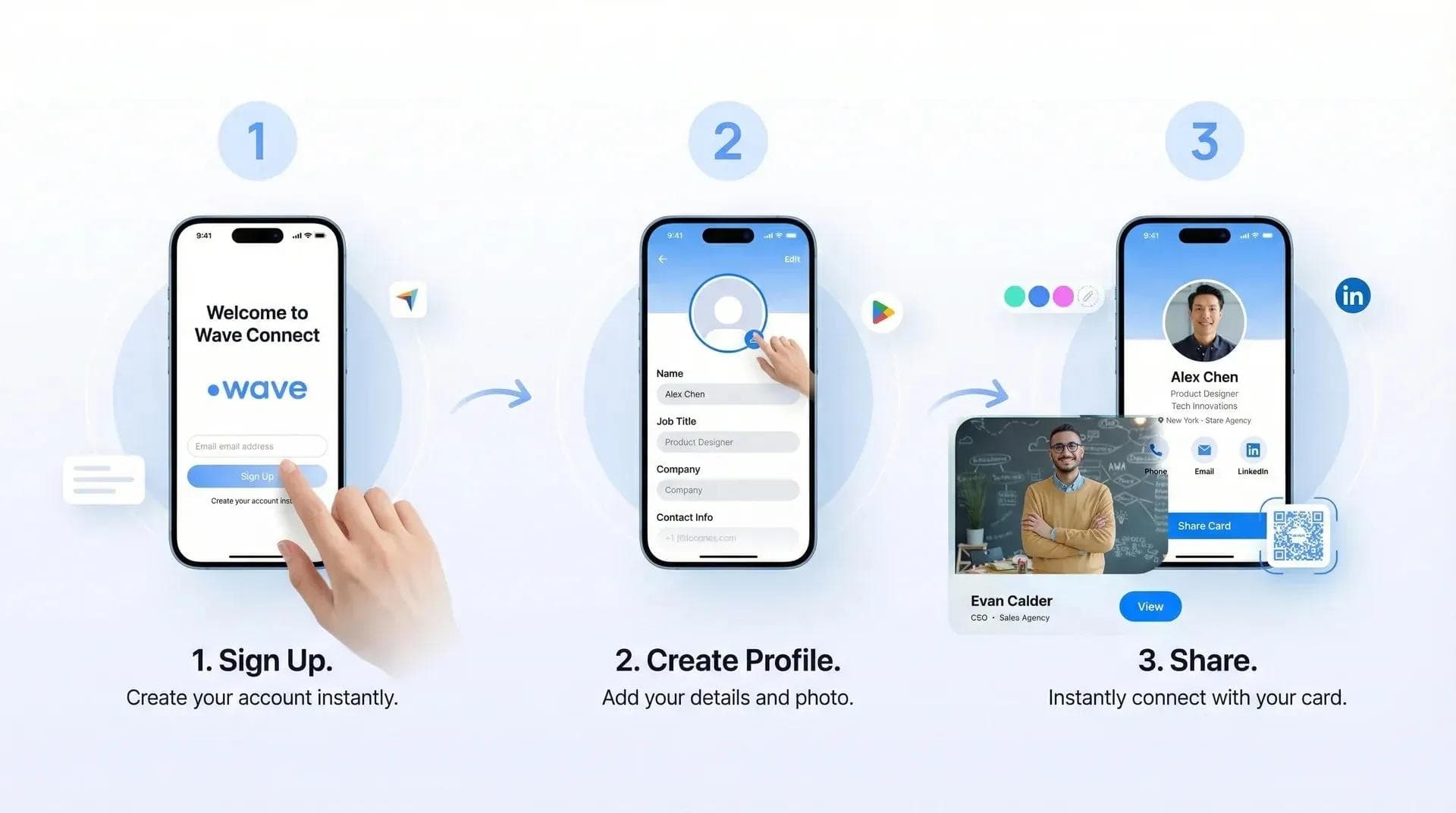
- App für digitale Visitenkarten öffnen: Öffnen Sie Wave Connect oder Ihre bevorzugte Plattform
- Apple Wallet-Option suchen: Meist unter Einstellungen oder im Teilen-Menü
- Auf „Zu Apple Wallet hinzufügen“ tippen: Dadurch wird eine spezielle Pass-Datei erstellt
- Hinzufügen bestätigen: Prüfen Sie die Vorschau und tippen Sie oben rechts auf „Hinzufügen“
- Testen: Drücken Sie im Sperrbildschirm doppelt auf die Seitentaste
Ihre Karte erscheint nun neben Ihren Zahlungskarten und Bordkarten. Der größte Vorteil: Sie können sie teilen, indem Sie Ihr iPhone an ein anderes halten – ganz ohne Entsperren. Weitere Nutzungsmöglichkeiten für Ihre digitale Visitenkarte, finden Sie in unserem ausführlichen Ratgeber.
- Sofortiger Zugriff: Funktioniert auch bei gesperrtem Gerät
- Vertraute Bedienung: Identisch mit Apple Pay
- Teilen durch Antippen: NFC-Freigabe mit anderen iPhones
- Kein Akkuverbrauch: Im Gegensatz zu Widgets
- Eingeschränktes Design: Wallet-Pass-Layout lässt sich kaum anpassen
- Plattform-Unterstützung: Nicht jede App unterstützt Apple Wallet
- Verzögerte Updates: Änderungen synchronisieren teils verzögert
Ein wichtiger Punkt: Bei Wave Connect synchronisiert sich Apple Wallet innerhalb von Sekunden, wenn Sie Kartendaten ändern. Manche Mitbewerber brauchen dafür bis zu 24 Stunden – was bei einem Kunden zu Problemen führte, als er mitten auf einer Konferenz den Job wechselte.
Methode 2: Sperrbildschirm-Widgets (iOS 16+)
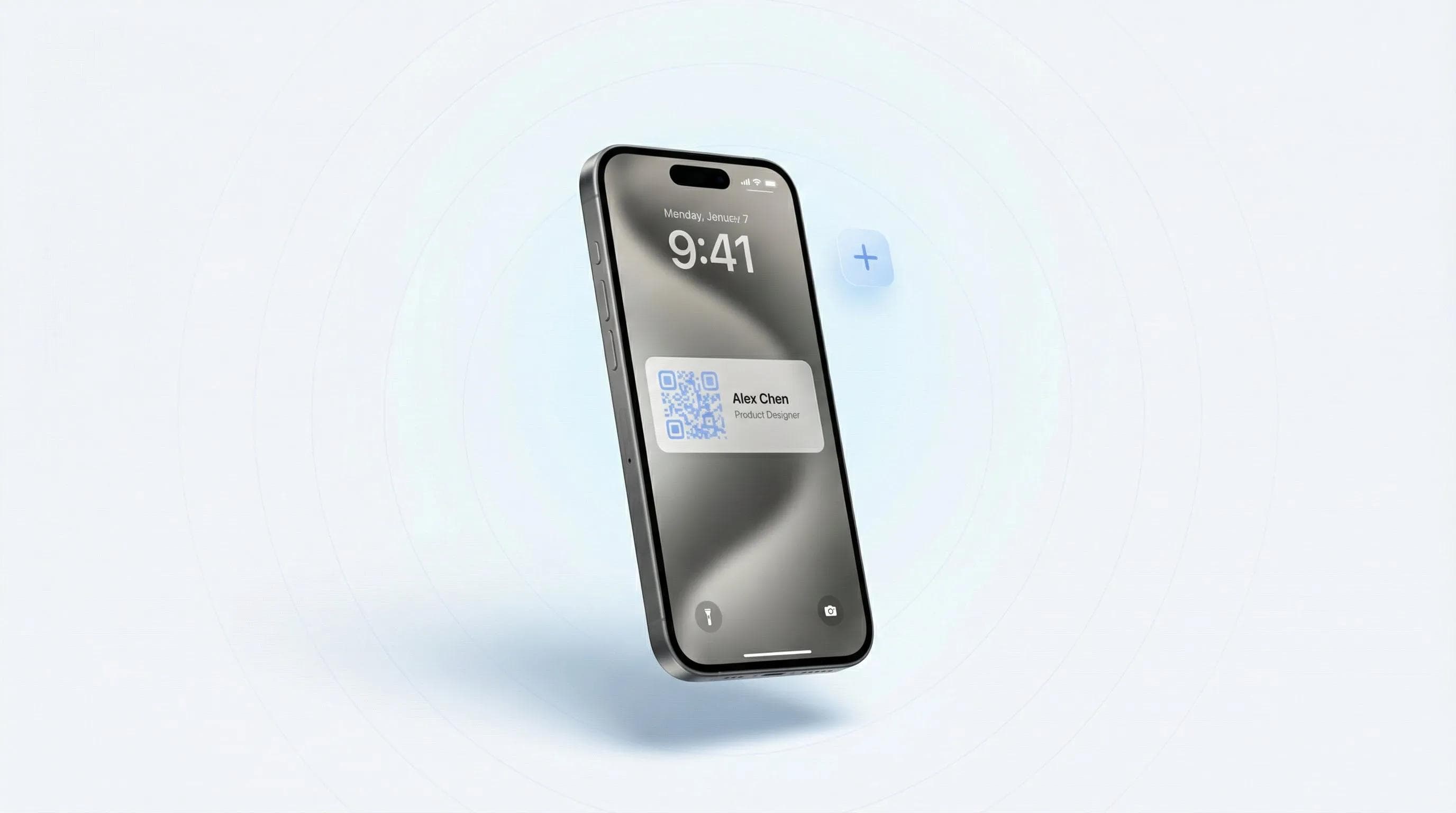
Sperrbildschirm-Widgets sind die flexibelste Möglichkeit, Ihre digitale Visitenkarte zu präsentieren: Sie platzieren einfach ein interaktives Widget direkt auf dem Sperrbildschirm. Seit iOS 16 lassen sich Widgets unter der Uhrzeit platzieren, die Ihre Karte sofort öffnen. Diese Methode bietet die ideale Balance aus Sichtbarkeit und Funktion.
Sperrbildschirm-Widgets einrichten
- Sperrbildschirm gedrückt halten: Halten Sie gedrückt, bis die Schaltfläche „Anpassen“ erscheint
- Auf „Anpassen“ tippen: Wählen Sie Ihren aktuellen Sperrbildschirm aus
- Auf den Widget-Bereich tippen: Unterhalb von Uhrzeit und Datum
- Nach der App suchen: Geben Sie „Wave“ oder den Namen Ihrer Plattform ein
- Widget-Größe wählen: Klein (rund) oder rechteckig
- Auf „Fertig“ tippen: Das Widget ist einsatzbereit
💡 Ergebnisse aus dem Widget-Test: Ich habe letzten Monat Widgets von acht Anbietern digitaler Visitenkarten getestet. Wave Connect, Blinq und HiHello bieten Sperrbildschirm-Widgets an; Popl und Linq unterstützen sie noch nicht. Das rechteckige Widget lässt sich am schnellsten antippen.
Für das beste Ergebnis empfiehlt sich das rechteckige Widget statt des runden. Die größere Touch-Fläche verhindert Fehlklicks – besonders bei Hektik auf Events. Wenn Sie zudem physische NFC-Karten nutzen möchten, passt diese Widget-Methode perfekt dazu.
Methode 3: Schnellzugriff über das Kontrollzentrum
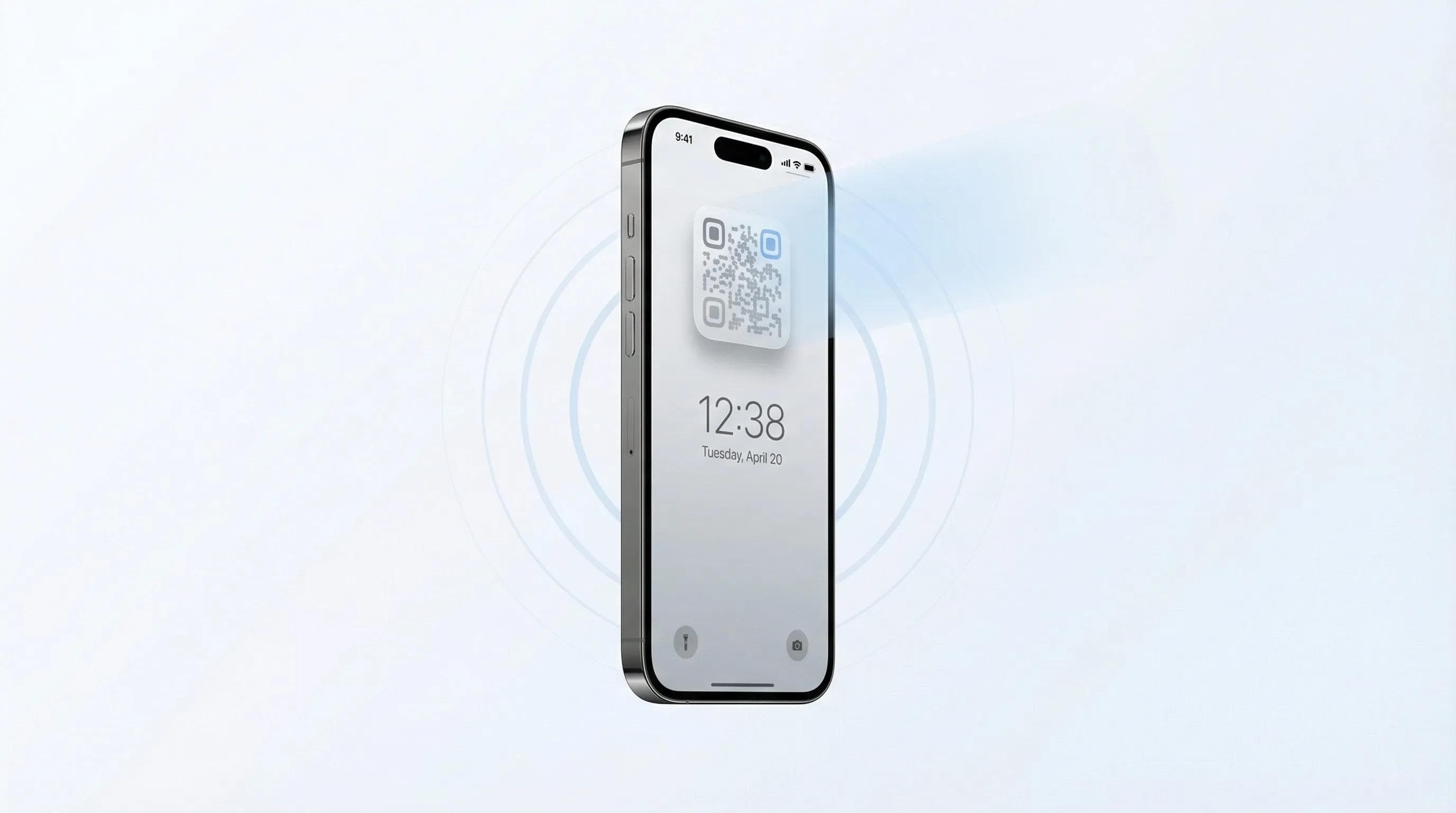
Kurzbefehle im Kontrollzentrum ermöglichen den Zugriff vom Sperrbildschirm aus, ohne Widget-Platz zu belegen – perfekt für alle, die ein aufgeräumtes Display bevorzugen. Dabei nutzen Sie die iOS-Kurzbefehle, um Ihre digitale Visitenkarte im Kontrollzentrum abzulegen. Ein Wisch von der oberen rechten Ecke nach unten (bzw. von unten nach oben bei älteren iPhones) genügt.
Kurzbefehl fürs Kontrollzentrum erstellen
- Kurzbefehle-App öffnen: Auf jedem iPhone vorinstalliert
- Auf „+“ tippen für neuen Kurzbefehl: Benennen Sie ihn z. B. „Meine Visitenkarte“
- Aktion hinzufügen: Suchen Sie nach „App öffnen“ und wählen Sie es aus
- Visitenkarten-App wählen: Wählen Sie Wave Connect oder Ihre Plattform
- Zum Kontrollzentrum hinzufügen: Einstellungen > Kontrollzentrum > „Kurzbefehle“ hinzufügen
- Position anpassen: An die gewünschte Stelle ziehen
Profi-Tipp: Sie können auch einen Sprachbefehl einrichten. Ich nutze „Hey Siri, zeig meine Visitenkarte“ mindestens zehnmal pro Woche. Tippen Sie im Kurzbefehl einfach auf das Einstellungen-Symbol, wählen Sie „Zu Siri hinzufügen“, sprechen Sie den Satz ein und speichern Sie.
Best Practices für das Teilen von Visitenkarten über den Sperrbildschirm
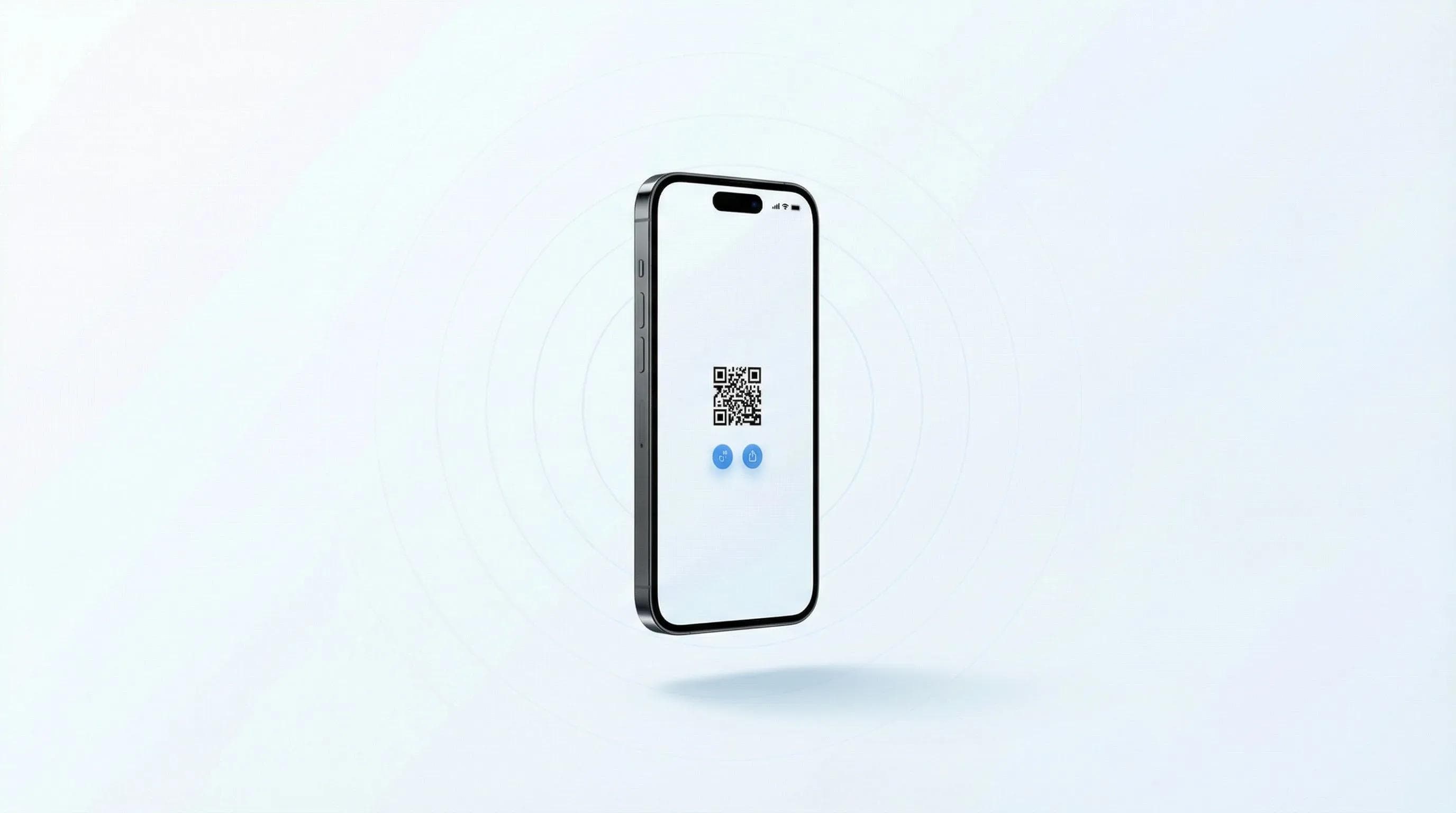
Der Sperrbildschirm-Zugriff zahlt sich vor allem dann aus, wenn jede Sekunde zählt: beim Elevator Pitch, auf Messen oder im Gespräch in der Kaffeeschlange. Nach zahllosen Einsätzen auf Events hat sich Folgendes bewährt:
- Apple Wallet: Ideal für die blitzschnelle Übergabe mitten im Gespräch
- Sperrbildschirm-Widget: Perfekt zum proaktiven Teilen mit visueller Erinnerung
- Kontrollzentrum: Optimal, wenn der Sperrbildschirm voller Mitteilungen ist
💡 Praxisbeispiel: Letzten Monat auf der CES sah ich einen Gründer, der drei verschiedene Apps durchsuchen musste, um seine Kontaktdaten zu teilen. Ich dagegen drückte zweimal die Seitentaste für Apple Wallet und war in fünf Sekunden mit seinem Kollegen vernetzt. Sperrbildschirm-Zugriff ist nicht nur praktisch – er wirkt absolut professionell.
Wichtige Datenschutzeinstellungen
- Vorschau von Mitteilungen ausblenden: Einstellungen > Mitteilungen > Vorschau zeigen > Wenn entsperrt
- Bildschirmzeit nutzen, um Auszeiten für Widgets außerhalb der Arbeitszeiten festzulegen
- In sensiblen Branchen (Recht, Gesundheitswesen) Widgets ggf. vom Sperrbildschirm entfernen
Für erweiterte Setups erfahren Sie hier, wie Sie bestehende Visitenkarten digitalisieren und in Ihren Sperrbildschirm einbinden.
Fehlerbehebung bei typischen Einrichtungsproblemen
Meist läuft die Einrichtung reibungslos. Gelegentlich sorgen jedoch iOS-Updates oder App-Konflikte für Probleme. Hier sind Lösungen für die häufigsten Stolpersteine aus meiner Praxis.
Widget erscheint nicht oder aktualisiert sich nicht
Falls das Widget leer bleibt oder veraltete Daten anzeigt:
- App-Beenden erzwingen (nach oben wischen und wegstreichen)
- Hintergrundaktualisierung für die Visitenkarten-App aktivieren
- Widget vom Sperrbildschirm entfernen und neu hinzufügen
- iPhone neu starten (behebt 90 % aller Widget-Probleme)
Synchronisierungsprobleme mit Apple Wallet
- Pass aus Wallet löschen und neu hinzufügen
- Internetverbindung prüfen
- App für digitale Visitenkarten aktualisieren
- Von iCloud ab- und wieder anmelden (selten nötig, aber wirksam)
💡 Profi-Tipp zur Behebung: Bei der Fehlerbehebung für ein Vertriebsteam letzte Woche fiel mir auf, dass der Stromsparmodus Widget-Updates blockieren kann. Das vorübergehende Deaktivieren löste die Synchronisierungsprobleme bei drei Teammitgliedern sofort.
Einen Kostenvergleich zwischen gedruckten und digitalen Karten inklusive Nachbestellungen finden Sie in unserem Kostenvergleich: Papier- vs. digitale Visitenkarten.
Alternative Methoden zum schnellen Teilen auf dem iPhone
Neben dem Sperrbildschirm-Zugriff rundet die Kombination weiterer Sharing-Methoden Ihr digitales Networking-Toolkit ab. Hier sind die effektivsten Alternativen, die ich täglich nutze:
Wichtige alternative Methoden
- QR-Code-Screenshot: QR-Code unter Fotos-Favoriten speichern für den schnellen Zugriff
- NFC-Hintergrundlesen: Funktioniert mit NFC-Visitenkarten auf dem iPhone XS und neuer
- Textersetzung: Tippen Sie „mycard“, um den Link Ihrer digitalen Karte automatisch einzufügen
- App Clips: Teilen über sofortige App Clips ganz ohne vollständige App-Installation
💡 Tipp zur Textersetzung: Ich habe „mycard“ als Textersetzung hinterlegt, die sich automatisch in meine Wave Connect-URL umwandelt. Perfekt für Follow-up-Nachrichten: „Schön, Sie kennengelernt zu haben! Hier ist meine Visitenkarte: mycard“ wird automatisch zum vollständigen Link. Die Einrichtung dauert 30 Sekunden und spart auf Dauer Stunden.
Entscheidend ist die passende Methode für den jeweiligen Moment: Sperrbildschirm für den schnellen persönlichen Austausch, Textersetzungen für Follow-ups und professionell gestaltete QR-Codes für Präsentationsfolien.
Erstellen Sie Ihre kostenlose Sperrbildschirm-Visitenkarte
Starten Sie mit der kostenlosen digitalen Visitenkarte von Wave Connect. Vollständige Sperrbildschirm-Integration, Apple Wallet-Unterstützung und anpassbare Widgets – komplett kostenlos.
Kostenlose Karte erstellenHäufig gestellte Fragen (FAQ)
Kann ich mehrere Visitenkarten auf meinem iPhone-Sperrbildschirm ablegen?
Ja, Sie können mehrere Karten über verschiedene Methoden einbinden – zum Beispiel eine in Apple Wallet und eine andere als Widget. Manche Apps wie Wave Connect ermöglichen es zudem, direkt im selben Widget zwischen verschiedenen Kartendesigns zu wechseln.
Funktioniert der Sperrbildschirm-Zugriff auch im Stromsparmodus?
Apple Wallet und das Kontrollzentrum funktionieren im Stromsparmodus wie gewohnt, Widgets aktualisieren sich jedoch möglicherweise seltener. Ihre Karten bleiben jederzeit abrufbar, lediglich Widget-Aktualisierungen können sich verzögern.
Benötigen Empfänger eine App, um meine Karte vom Sperrbildschirm zu erhalten?
Nein, Empfänger benötigen grundsätzlich keine App – ganz gleich, wie Sie Ihre Karte teilen. Ob über den Sperrbildschirm oder per App: Die Kontaktdaten lassen sich direkt im Adressbuch des Smartphones speichern.
Können auch Android-Nutzer Visitenkarten auf ihrem Sperrbildschirm ablegen?
Ja, Android bietet vergleichbare Funktionen über Widgets und Google Wallet. Die genauen Schritte variieren je nach Android-Version und Gerätehersteller.
Wie entferne ich eine Visitenkarte von meinem Sperrbildschirm?
Halten Sie den Sperrbildschirm gedrückt, tippen Sie auf „Anpassen“ und wählen Sie das Widget aus, um es zu löschen. Bei Apple Wallet öffnen Sie einfach die Wallet-App und löschen den entsprechenden Pass direkt.
Was passiert mit der Sperrbildschirm-Karte, wenn ich den Job wechsle?
Aktualisieren Sie einfach Ihre Karte in der App. Die Änderungen werden automatisch synchronisiert – Sie müssen den Sperrbildschirm nicht neu einrichten. Apple Wallet aktualisiert sich binnen Minuten, Widgets aktualisieren sich gemäß Ihren Einstellungen.
Über den Autor: George El-Hage ist Gründer von Wave Connect, einer Plattform für digitale Visitenkarten, die weltweit von über 150.000 Fach- und Führungskräften genutzt wird. Mit mehr als sechs Jahren Erfahrung bei der Umstellung von Papier auf digitales Netzwerken weiß George genau, worauf es bei erfolgreichen digitalen Visitenkarten für Einzelpersonen und Teams ankommt. Wave Connect ist SOC 2 Type II-konform und integriert sich nahtlos in führende CRM-Plattformen wie Salesforce, HubSpot und Pipedrive.