George El-Hage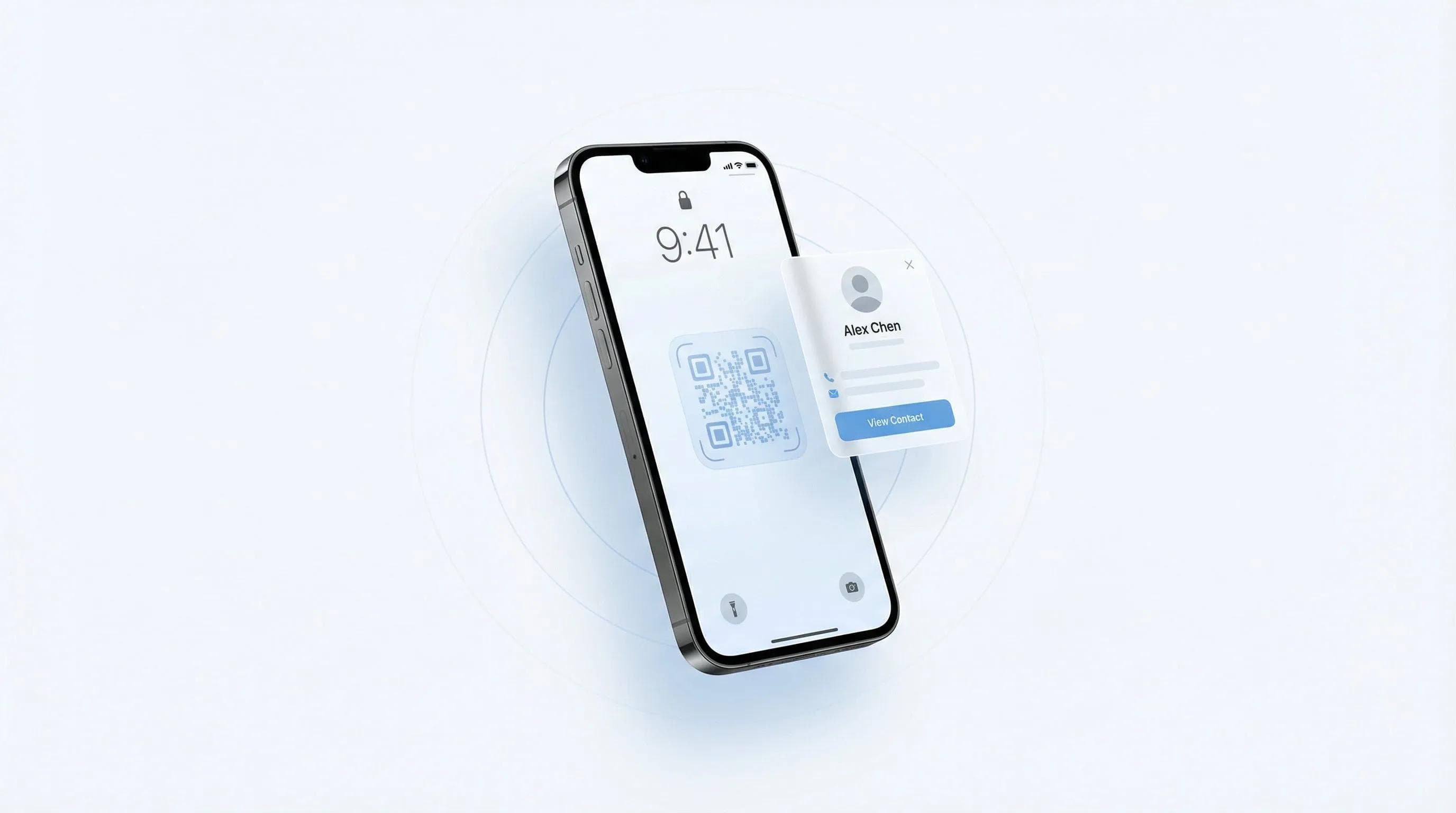
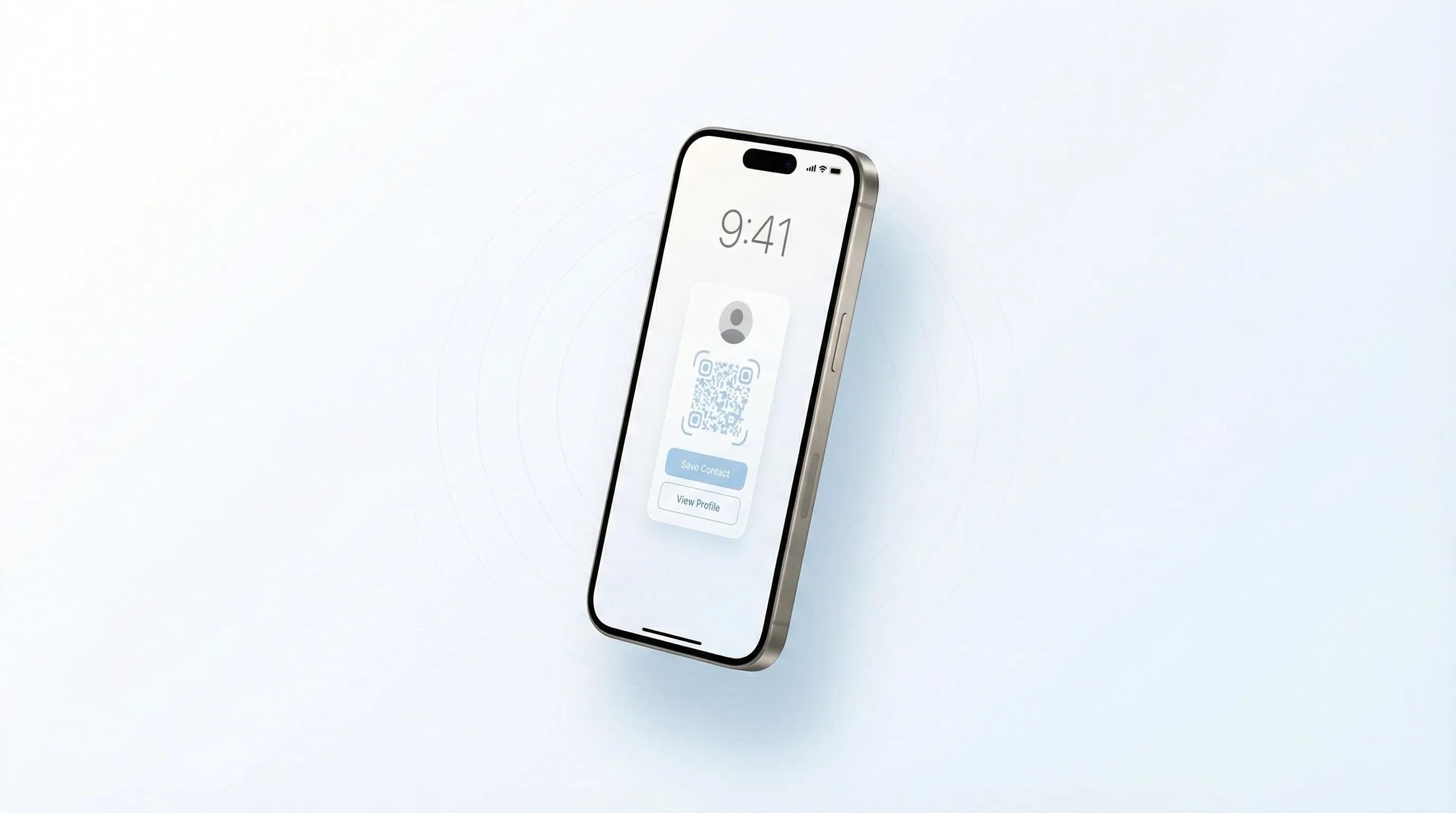
Saber como adicionar um cartão de visita digital à tela de bloqueio do iPhone é uma das dúvidas mais frequentes que recebo de profissionais que querem praticidade máxima no networking. Depois de testar todos os métodos em várias versões do iOS, vou mostrar exatamente o que funciona.
Neste guia, você verá três métodos comprovados para acessar seu cartão de visita digital direto da tela de bloqueio, além de soluções para os problemas de configuração mais comuns. Testei tudo pessoalmente com o cartão de visita digital gratuito da Wave Connect e outras plataformas no iOS 16, 17 e 18.
Adicionar seu cartão de visita digital à tela de bloqueio do iPhone agiliza seu networking profissional no dia a dia. Use a integração com a Apple Wallet, widgets da tela de bloqueio (iOS 16+) ou atalhos da Central de Controle para acessar e compartilhar seu cartão em poucos segundos. Escolha a opção ideal para a sua versão do iOS e seu estilo de compartilhamento.
O que você precisa antes de começar
Para adicionar um cartão de visita digital à tela de bloqueio do seu iPhone, você vai precisar de um aparelho com iOS 16 ou superior e uma plataforma de cartão de visita digital com integração mobile. Os requisitos exatos variam de acordo com o método escolhido, mas a maioria dos profissionais consegue fazer toda a configuração em menos de 5 minutos.
Aqui está o seu checklist inicial:
- Modelo de iPhone: iPhone X ou mais recente (para acesso rápido via Face ID)
- Versão do iOS: iOS 16+ para widgets; iOS 15+ para o método via Apple Wallet
- Cartão de visita digital: Conta ativa em uma plataforma com suporte a aplicativo móvel
- Apple ID: Conectado para integração com a Apple Wallet
- 5 minutos: Tempo de configuração inicial (é rápido assim mesmo)
💡 Pelos meus testes: Configurei o acesso pela tela de bloqueio em 5 iPhones diferentes na semana passada (durante testes para um cliente). O método por widget funcionou perfeitamente no iOS 17 e 18, mas os usuários do iOS 16 tiveram resultados melhores usando a Apple Wallet.
Método 1: usando a Apple Wallet para acesso pela tela de bloqueio
A Apple Wallet oferece o acesso mais rápido ao cartão de visita digital pela tela de bloqueio, funcionando mesmo quando o aparelho está totalmente bloqueado. O método usa o mesmo gesto de dois cliques no botão lateral do Apple Pay, algo super intuitivo para quem usa iPhone. A configuração leva cerca de 2 minutos.
Passo a passo: configuração na Apple Wallet
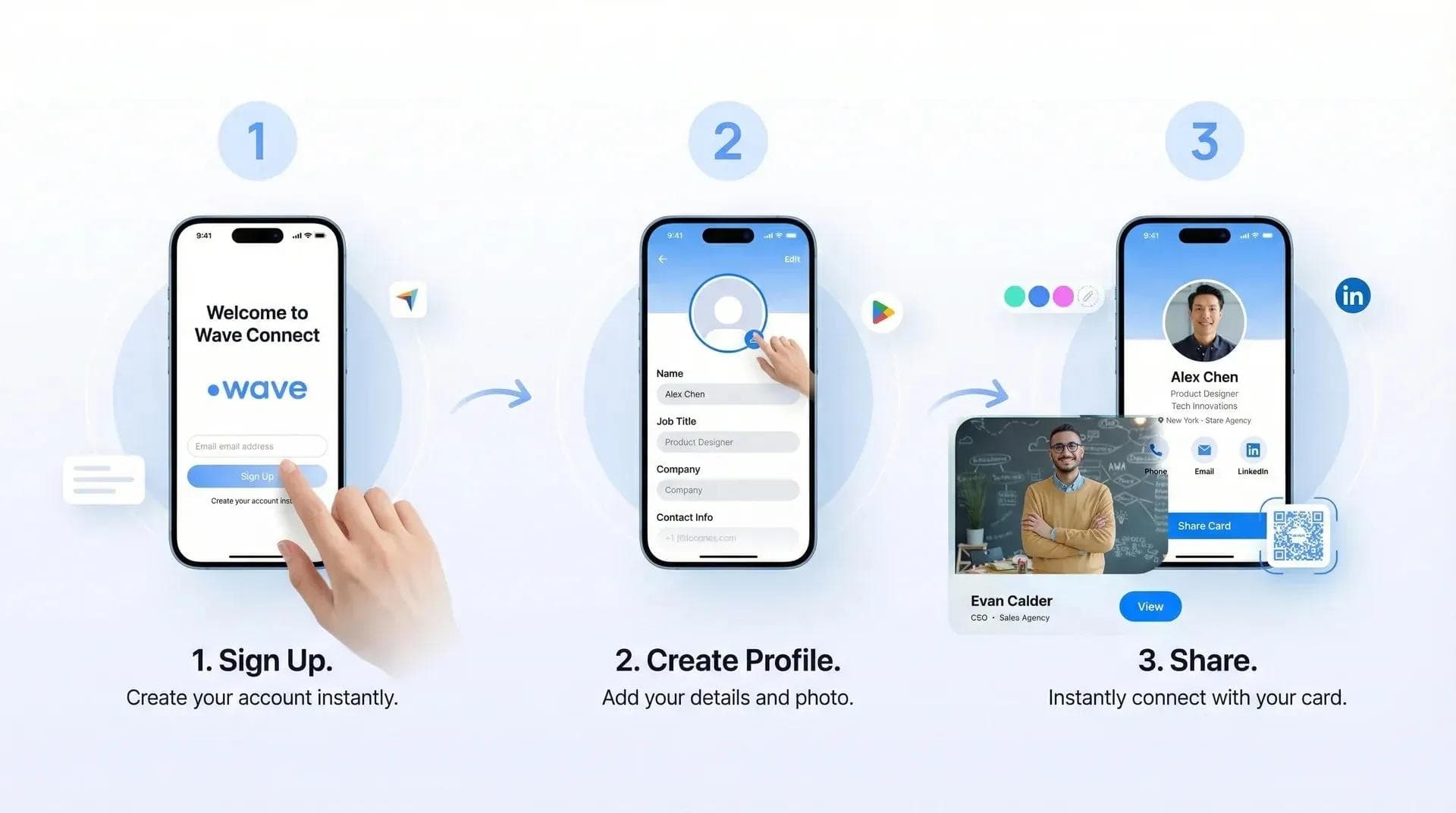
- Abra o app do seu cartão de visita digital: Abra o Wave Connect ou a plataforma de sua preferência
- Encontre a opção da Apple Wallet: Geralmente fica em Ajustes ou no menu de Compartilhar
- Toque em "Adicionar à Carteira da Apple": Isso gera o passe correspondente
- Confirme a inclusão: Veja a prévia e toque em "Adicionar" no canto superior direito
- Faça o teste: Dê dois cliques no botão lateral com a tela bloqueada
Seu cartão agora aparece ao lado dos seus cartões de crédito e cartões de embarque. O melhor de tudo: você pode compartilhar aproximando seu celular de outro iPhone — sem nem precisar desbloquear. Para conhecer outras formas de usar seu cartão de visita digital, confira nosso guia completo.
- Acesso imediato: Funciona mesmo com o aparelho bloqueado
- Gesto familiar: O mesmo usado no Apple Pay
- Compartilhamento por aproximação: Envio via NFC para outros iPhones
- Não consome bateria extra: Diferente dos widgets
- Personalização limitada: Não dá para alterar o layout do passe na Carteira
- Suporte da plataforma: Nem todos os aplicativos oferecem suporte à Apple Wallet
- Sincronização: Alterações podem demorar para atualizar
Um detalhe importante: a integração da Wave Connect com a Apple Wallet atualiza em segundos quando você altera dados do cartão. Alguns concorrentes levam até 24 horas para sincronizar, o que já gerou problemas para um cliente que mudou de cargo no meio de um evento.
Método 2: widgets na tela de bloqueio (iOS 16+)
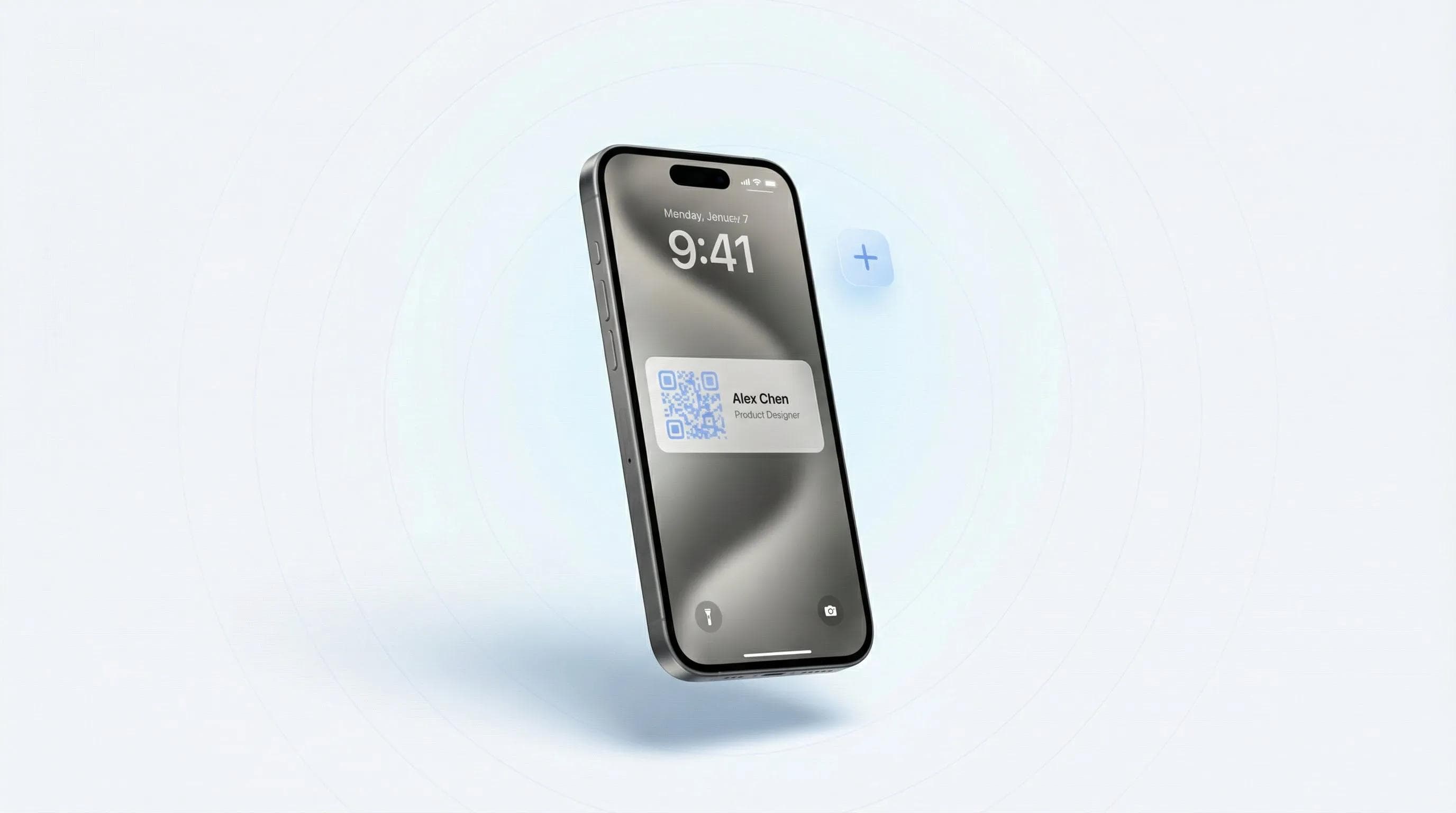
Os widgets na tela de bloqueio são a opção mais personalizada para exibir seu cartão de visita digital, adicionando um atalho clicável direto na tela inicial bloqueada. A partir do iOS 16, você pode incluir widgets logo abaixo do relógio para abrir seu cartão de visita digital num instante. Essa alternativa equilibra visibilidade e praticidade com perfeição.
Como instalar widgets na tela de bloqueio
- Pressione e segure a tela de bloqueio: Segure até aparecer o botão "Personalizar"
- Toque em "Personalizar": Selecione sua tela de bloqueio atual
- Toque na área de widgets: Logo abaixo do relógio e data
- Busque pelo seu aplicativo: Digite "Wave" ou o nome da sua plataforma
- Escolha o tamanho do widget: Pequeno (circular) ou retangular
- Toque em "OK": Seu widget já está pronto para uso
💡 Resultados dos testes com widgets: No mês passado, testei widgets de 8 plataformas diferentes de cartão de visita digital. Wave Connect, Blinq e HiHello oferecem widgets para a tela de bloqueio; Popl e Linq ainda não contam com esse recurso. O formato retangular é o mais prático para tocar com agilidade.
Para uma experiência melhor, prefira o widget retangular em vez do circular. A área de toque maior evita toques errados, especialmente na correria de um evento. Se você também está avaliando o uso de cartões NFC físicos, esse método por widget combina perfeitamente com eles.
Método 3: acesso rápido pela Central de Controle
Os atalhos na Central de Controle permitem acessar seu cartão pela tela de bloqueio sem ocupar espaço de widgets — ideal para quem prefere um visual mais limpo na tela. Esse método usa o app Atalhos do iOS para colocar seu cartão de visita digital na Central de Controle, acessível deslizando o dedo do canto superior direito para baixo (ou de baixo para cima nos iPhones mais antigos).
Como criar seu atalho na Central de Controle
- Abra o app Atalhos: Já vem instalado em todo iPhone
- Toque no "+" para criar um novo: Nomeie como "Meu Cartão de Visita"
- Adicione uma ação: Busque por "Abrir App" e selecione a opção
- Escolha o app do seu cartão: Selecione o Wave Connect ou a sua plataforma
- Adicione à Central de Controle: Ajustes > Central de Controle > Adicionar "Atalhos"
- Ajuste a posição: Arraste para o local desejado
Dica de ouro: você também pode criar um atalho por comando de voz. Eu uso "E aí Siri, mostrar meu cartão de visita" pelo menos 10 vezes por semana. No seu atalho, toque no ícone de ajustes, escolha "Adicionar à Siri", grave a sua frase e salve.
Boas práticas para compartilhar seu cartão pela tela de bloqueio
O acesso pela tela de bloqueio faz toda a diferença em momentos de networking onde a agilidade é essencial: elevator pitches, conversas rápidas em feiras e até na fila do café. Depois de testar esses métodos em dezenas de eventos, aqui está a melhor indicação para cada caso:
- Apple Wallet: Perfeita para trocas de contato rápidas durante uma conversa
- Widget na tela de bloqueio: Excelente para quem quer ter um lembrete visual e compartilhar de forma proativa
- Central de Controle: Ideal quando a tela de bloqueio vive cheia de notificações
💡 Caso real: No mês passado, durante a CES, vi um fundador se atrapalhar abrindo três apps diferentes para compartilhar seu contato. Enquanto isso, dei dois cliques para abrir a Apple Wallet e troquei contato com o colega dele em 5 segundos. O acesso pela tela de bloqueio não é só comodidade: passa profissionalismo imediato.
Ajustes de privacidade importantes
- Oculte a pré-visualização de notificações: Ajustes > Notificações > Pré-visualizações > Quando Desbloqueado
- Use o Tempo de Uso para definir limites de exibição do widget fora do horário de trabalho
- Avalie remover widgets se atuar em áreas de sigilo rigoroso (como advocacia ou saúde)
Para configurações mais avançadas, veja como digitalizar seus cartões de visita existentes e integrá-los à tela de bloqueio.
Como resolver problemas comuns de configuração
A configuração na tela de bloqueio costuma ser tranquila, mas atualizações do iOS ou conflitos no app podem causar pequenos erros. Confira as soluções para os problemas que mais costumo ajudar a resolver.
O widget não aparece ou não atualiza
Se o seu widget estiver em branco ou desatualizado:
- Force o encerramento do app (deslize para cima na tela de apps e feche)
- Ative a Atualização em Segundo Plano para o app do seu cartão
- Remova e adicione novamente o widget na tela de bloqueio
- Reinicie o iPhone (resolve 90% dos problemas de widgets)
Problemas de sincronização com a Apple Wallet
- Apague e adicione o passe novamente na Carteira
- Verifique sua conexão com a internet
- Atualize o app do seu cartão de visita digital
- Encerre a sessão no iCloud e entre novamente (raro, mas funciona)
💡 Dica de especialista: Ao prestar suporte para uma equipe de vendas na semana passada, descobri que o Modo Pouca Energia pode impedir a atualização dos widgets. Desativá-lo temporariamente durante a configuração resolveu o problema de sincronização de 3 membros do time.
Para comparar os custos entre cartões físicos e digitais, incluindo despesas de reposição, veja nosso comparativo de custos: cartão de papel vs. digital.
Outras formas rápidas de compartilhar no iPhone
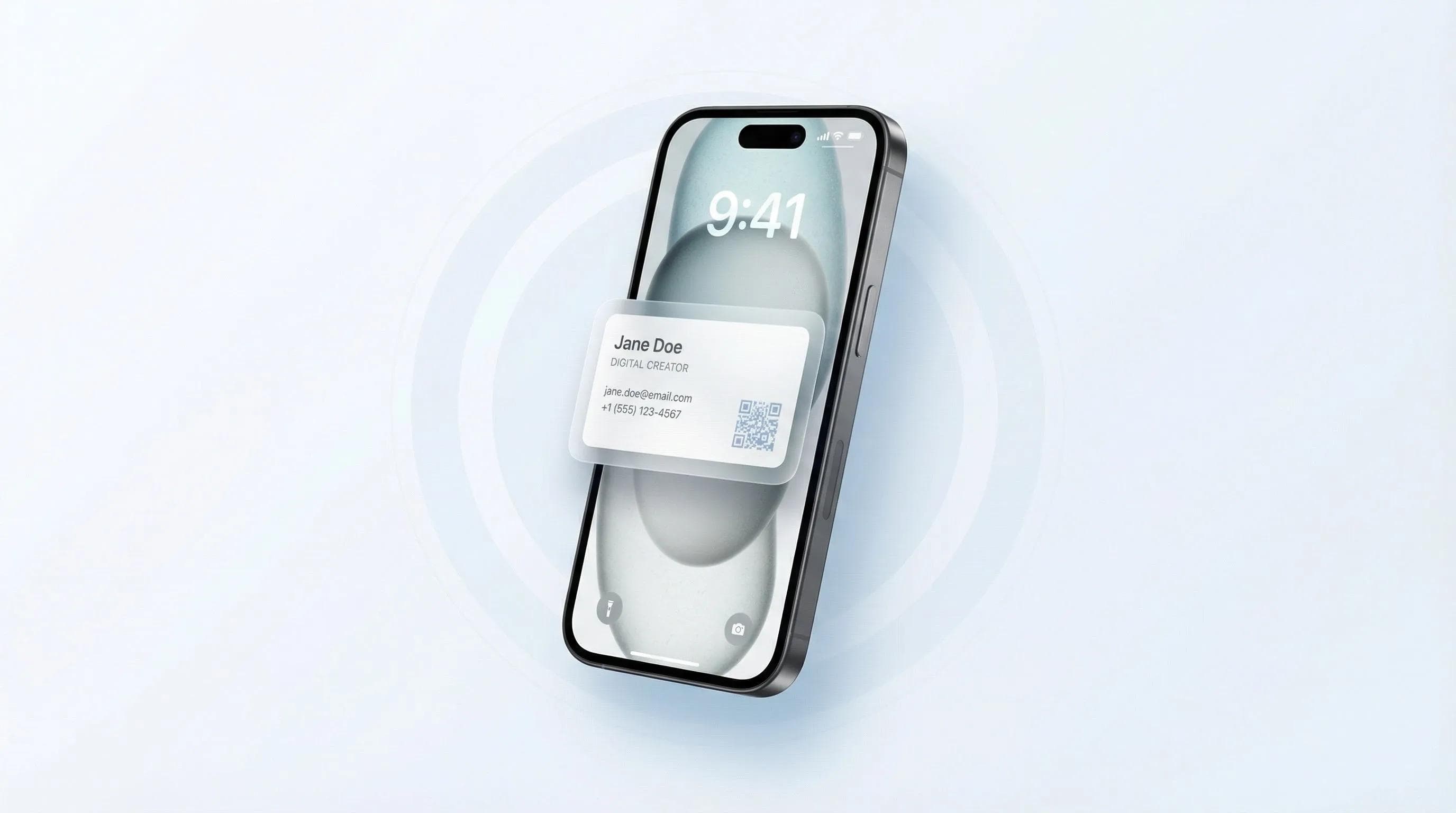
Além da tela de bloqueio, combinar diferentes formas de compartilhamento rápido cria um kit completo de networking no seu celular. Aqui estão as alternativas mais eficientes que uso no dia a dia:
Principais métodos alternativos
- Print do QR Code: Salve o QR Code nos Favoritos do app Fotos para acessar rápido pela câmera
- Leitura de NFC em segundo plano: Funciona com cartões de visita NFC no iPhone XS e modelos mais recentes
- Substituição de texto: Digite "meucartao" para expandir automaticamente o link do seu cartão
- Clipes de Apps (App Clips): Compartilhe por App Clips instantâneos sem precisar instalar o app completo
💡 Dica de atalho de texto: Configurei "meucartao" como substituição de texto que expande para a URL da minha Wave Connect. É perfeito para mensagens de follow-up: "Foi um prazer te conhecer! Segue meu cartão: meucartao" vira o link completo automaticamente. Leva 30 segundos para configurar e economiza muito tempo.
O segredo é escolher o método certo para cada situação: tela de bloqueio para rapidez no contato presencial, atalhos de texto para follow-ups e QR Codes bem estruturados para slides de apresentação.
Crie seu cartão de visita gratuito para a tela de bloqueio
Comece agora com o cartão de visita digital gratuito da Wave Connect. Integração total com a tela de bloqueio, suporte à Apple Wallet e widgets personalizáveis — tudo sem custo.
Criar meu cartão gratuitoPerguntas frequentes
Posso adicionar mais de um cartão de visita à tela de bloqueio do iPhone?
Sim, você pode adicionar múltiplos cartões usando métodos diferentes: um na Apple Wallet e outro como widget. Alguns aplicativos, como o Wave Connect, também permitem alternar entre diferentes designs de cartão no mesmo widget.
O acesso pela tela de bloqueio funciona com o iPhone no Modo Pouca Energia?
A Apple Wallet e a Central de Controle funcionam normalmente no Modo Pouca Energia, mas os widgets podem atualizar com menor frequência. Seus cartões continuam acessíveis, embora os dados do widget possam levar mais tempo para atualizar.
Quem receber meu cartão pela tela de bloqueio precisa ter algum app instalado?
Não, os destinatários nunca precisam de aplicativo para receber seu cartão. Seja pela tela de bloqueio ou por app, as pessoas salvam seus dados de contato direto na agenda do celular.
Usuários de Android também podem colocar cartões de visita na tela de bloqueio?
Sim, o Android oferece recursos similares por meio de widgets e da Carteira do Google (Google Wallet). O passo a passo exato varia de acordo com a versão do Android e a marca do aparelho.
Como faço para remover um cartão de visita da tela de bloqueio?
Pressione e segure a tela de bloqueio, toque em Personalizar e selecione o widget para removê-lo. Para a Apple Wallet, abra o app Carteira e apague o passe diretamente.
O que acontece com o cartão na tela de bloqueio se eu mudar de emprego?
Basta atualizar seus dados no app: as alterações sincronizam automaticamente, sem precisar refazer a configuração na tela de bloqueio. A Apple Wallet atualiza em poucos minutos e os widgets são atualizados de acordo com os ajustes do seu aparelho.
Sobre o autor: George El-Hage é o fundador da Wave Connect, plataforma de cartão de visita digital que atende mais de 150.000 profissionais em todo o mundo. Com mais de 6 anos ajudando empresas a migrarem do papel para o networking digital, George tem ampla experiência no que faz os cartões digitais gerarem resultados para profissionais e equipes. A Wave Connect possui certificação SOC 2 Type II e se integra com os principais CRMs do mercado, como Salesforce, HubSpot e Pipedrive.