George El-Hage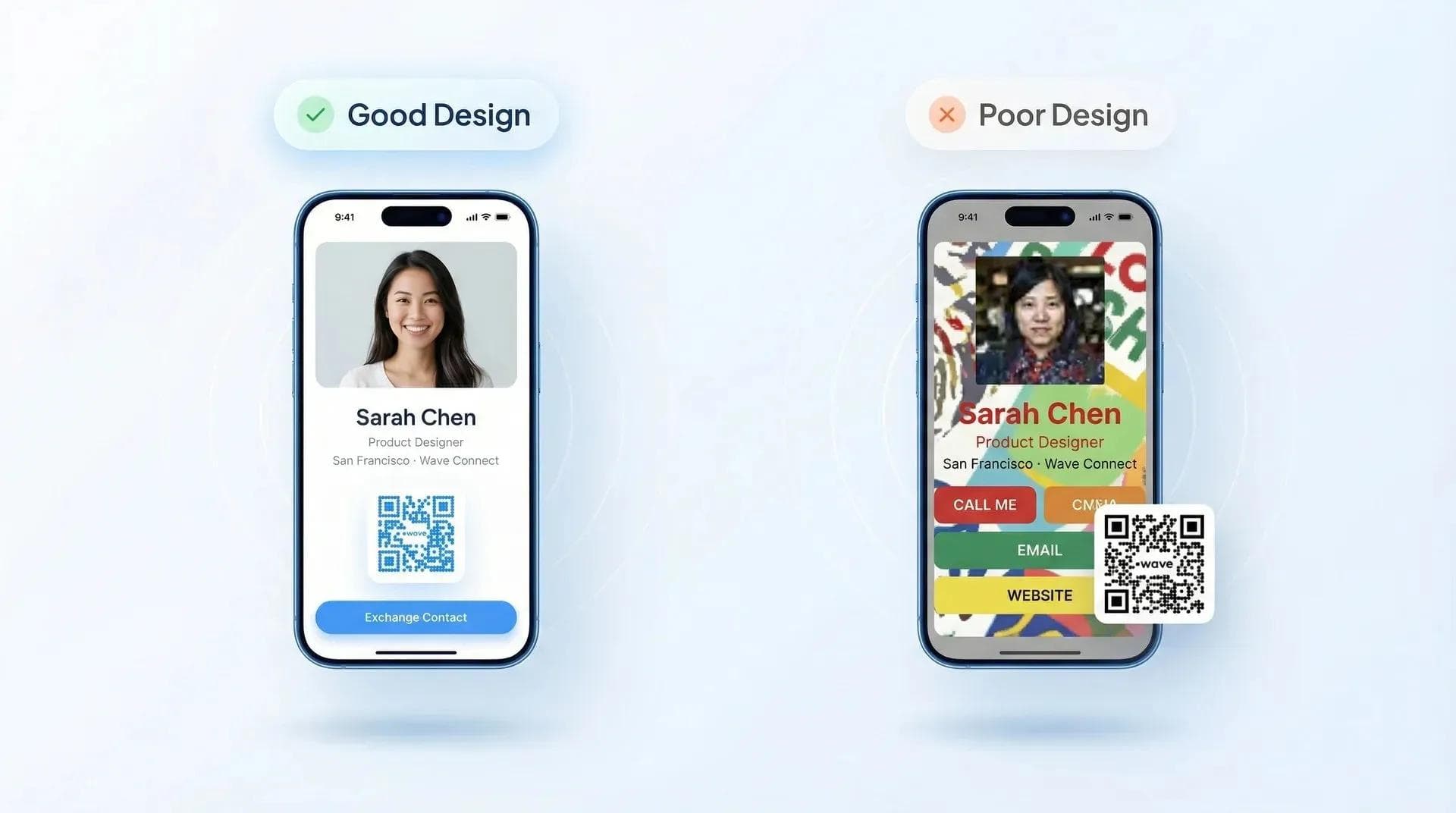
Business card design mistakes are costing professionals first impressions every single day - and most people don't even realize they're making them. Whether you're handing out a printed card at a conference or sharing a digital business card, bad design sends the wrong message before you even say a word.
In this guide, I'll walk you through the 10 biggest design mistakes I see after reviewing hundreds of thousands of cards, plus exactly how to fix each one. I also cover something nobody else talks about: design mistakes that are specific to digital cards.
The most common business card design mistakes are overcrowding information, using unreadable fonts, poor color contrast, and low-quality images. These apply to both paper and digital cards. However, digital cards eliminate several paper-only mistakes (cheap stock, typos you can't fix, wasted blank backs). The biggest digital-specific mistake? Choosing a platform that slaps its own branding on your card. Stick to clean design, readable fonts, and one clear call to action.
- The 10 mistakes: The exact design errors that make business cards forgettable (paper and digital)
- How to fix each one: Practical fixes you can apply in minutes, not hours
- Paper vs. digital: Which mistakes are automatically eliminated when you go digital
- Best practices checklist: A quick-reference list so your next card gets it right
Why Business Card Design Still Matters in 2026
Your business card - paper or digital - is often the very first piece of your brand someone interacts with after meeting you. A poorly designed card doesn't just look bad. It signals carelessness, and that impression sticks. According to Statista, the digital business card market hit $238 million in 2025 and is growing at 12.2% annually. More people are designing cards than ever - which means more people are making preventable mistakes.
I've been building Wave Connect since 2020, and in that time I've seen every design mistake imaginable. Cluttered layouts, unreadable fonts, pixelated logos, free-plan branding plastered all over someone's "professional" card. 😬
Here are the 10 biggest ones - and how to fix them.
10 Common Business Card Design Mistakes (Paper + Digital)
1. Overcrowding Your Card with Too Much Information
The number one business card design mistake is trying to fit everything on one card. Three phone numbers, two emails, a fax number (yes, I still see fax numbers in 2026), your LinkedIn, Instagram, TikTok, office address, mailing address... it's too much. Nobody reads a card that looks like a phone book.
On digital cards, the temptation is even worse because there's technically "room" for it all. But just because you can add eight links doesn't mean you should.
The fix: Name, title, company, one phone number, one email, one website or digital card link. That's it. Everything else can live on your full profile page. Less information = more impact.
2. Using Hard-to-Read Fonts or Tiny Text
If someone has to squint to read your name, your card has already failed. I see this constantly - decorative script fonts, ultra-thin weights, text below 7pt on paper or below 14px on mobile screens. It might look "elegant" on your design software, but it's unreadable in real life.
This is especially brutal on digital cards viewed on mobile. Around 75% of digital business card views happen on phones, and tiny text on a 6-inch screen is a death sentence for readability.
The fix: Stick to clean sans-serif fonts (Inter, Helvetica, Open Sans). Minimum 8pt for paper, 16px for digital. Your name should be the largest text on the card - always.
💡 From My Experience: When I A/B tested card designs across Wave users, cards with clean sans-serif fonts and strong hierarchy had noticeably higher save rates than cards with decorative or script fonts. Readability wins every time.
3. Poor Color Choices and Low Contrast
Low-contrast color combos - light gray text on white, navy on black - make your card impossible to read. And picking six colors because you "like them all" isn't branding; it's chaos. The best business cards use two to three colors maximum.
Color psychology matters, too. Blue signals trust. Red signals energy. Lime green on hot pink signals... a headache. Keep your palette tight and make sure text has strong contrast against the background. A quick rule of thumb: if you can't read it at arm's length, the contrast isn't high enough.
The fix: Two to three brand colors max. Dark text on light backgrounds (or vice versa). Run your palette through a free contrast checker tool to verify readability.
4. Low-Quality Images (Logo, Headshot, Icons)
A pixelated logo or blurry headshot instantly undermines your credibility. For paper cards, anything below 300 DPI will look fuzzy when printed. For digital cards, a stretched or low-res photo on your profile is even more noticeable because people view it on high-resolution phone screens.
This matters more for digital cards than most people realize. Your headshot is literally the first thing someone sees on a digital business card - it's your handshake before the handshake.
The fix: Use vector formats (SVG, AI) for logos. Get a professional headshot - even a well-lit iPhone photo beats a cropped group shot. For print, always export at 300 DPI minimum.
5. Typos and Grammatical Errors
One typo on a business card can cost you a deal - and on paper, you can't fix it without reprinting. Misspelled name, wrong phone number, outdated email address. According to Global Lingo research, nearly 60% of consumers would avoid a business that has obvious spelling or grammar mistakes in its materials.
This is actually one of the biggest advantages of digital cards. Spotted a typo on your Wave card? Fix it in 10 seconds. Spotted a typo on 500 printed cards you just picked up from the printer? That's a $200 reprint. 😬
The fix: Triple-check every detail before printing. Have someone else proof it. For digital cards, set a quarterly reminder to review your info.
6. Using a Free or Unprofessional Email Address
A gmail.com or yahoo.com email address on a business card immediately looks unprofessional. It tells the recipient you haven't invested in your own domain - which raises questions about how established your business actually is.
This applies equally to paper and digital cards. I've seen beautifully designed cards with "john.businessguy2003@hotmail.com" as the email. All that design work undone by one line of text.
The fix: Get a domain-based email (yourname@yourcompany.com). Services like Google Workspace and Microsoft 365 make this easy and affordable. If you're a solo freelancer, even firstname@lastname.com is better than a free provider.
7. Cheap or Flimsy Paper Stock (Printed Cards)
For printed cards, the material you choose says as much about your brand as the design itself. A thin, flimsy card feels forgettable in someone's hand. It bends, it tears, it ends up in the trash. According to 99designs, the texture, weight, and finish of your card create an immediate tactile impression before someone even reads the content.
For paper cards, aim for 350 GSM minimum. Consider finishes like matte, soft-touch, or spot UV for a premium feel.
Or - here's a thought - skip the paper stock decision entirely with a digital card. No printing costs, no material worries, and you can update your info whenever you need to.
The fix: Invest in quality stock (350+ GSM) if you're printing. Or switch to a digital card and eliminate the variable entirely.
💡 From My Experience: I've handed out both paper and digital cards at the same event. The paper cards, even high-quality ones, get pocketed and forgotten. The digital card? I can see in my Wave analytics exactly who opened it, saved my contact, or tapped through to my LinkedIn. That data alone changes the game.
8. Neglecting the Back of Your Card
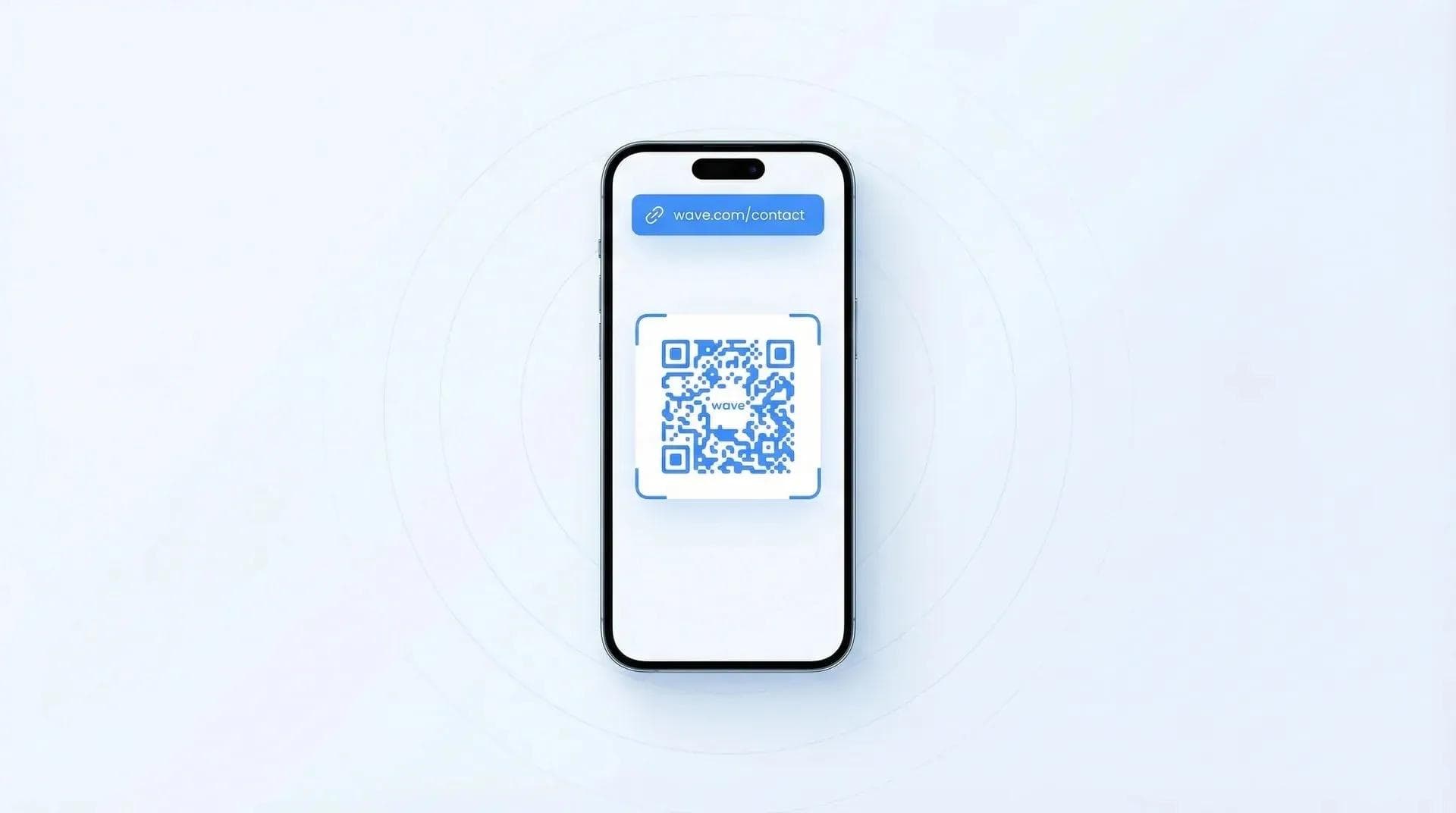
Around half of all paper business cards leave the back completely blank - that's wasted real estate. The back of your card is a perfect spot for a tagline, a QR code linking to your digital business card, your key services, or even a testimonial.
With digital cards, you don't have a "back" per se, but the same principle applies: don't leave your profile half-empty. Fill in your bio, add your social links, include a headshot. An incomplete profile signals that you don't care enough to finish it.
The fix: Use the back of paper cards for a QR code, tagline, or value proposition. On digital cards, complete every section of your profile.
9. Missing or Outdated Contact Information
Nothing kills a potential connection faster than a card with the wrong phone number or a dead email address. People change jobs, switch numbers, and update titles - but their printed cards stay the same until the next batch. I've had people reach out months later saying "your card had the wrong URL."
Digital cards solve this completely. Update once and every card you've ever shared updates automatically. No reprints, no wasted stock, no awkward "oh, that's my old number" moments.
The fix: Audit your card info every quarter. If you switch roles often, digital is the clear winner here - one update and you're done.
10. Choosing a Platform That Brands Your Card
If you're using a free digital business card, check whether the platform adds its own branding to your card. Most do. Blinq, HiHello, and Popl all add "Powered by [Platform]" badges on free plans - which means your card is advertising them instead of you.
This is the digital equivalent of handing out a paper card that says "Printed by VistaPrint" in bold at the bottom. Not a great look when you're trying to make a professional impression.
Wave Connect never sends solicitation to your contacts, on any plan. If you're comparing platforms, check out our Wave vs Blinq breakdown for the full picture.
The fix: Before committing to any digital card platform, check what recipients see on the plan you'll actually use, and whether a paid plan removes the platform's branding.
Paper vs. Digital: Which Mistakes Can You Avoid?
Five of the ten mistakes above are automatically eliminated - or drastically reduced - when you switch from paper to a digital business card. Here's the breakdown:
| Paper Card | Digital Card | |
|---|---|---|
| Typos | Permanent until reprint ($$$) | Fix instantly, free |
| Outdated Info | Requires new print run | Update once, applies everywhere |
| Cheap Paper Stock | Major quality concern | Not applicable |
| Blank Back | Wasted space | Unlimited profile sections |
| Platform Branding | Not an issue | Depends on the provider and plan |
| Overcrowding | Physical space limit | Link to full profile instead |
Comparison based on my experience managing both paper and digital card deployments since 2020.
The remaining five mistakes - fonts, colors, images, unprofessional email, and overcrowding - apply to both formats. Good design is good design regardless of medium. But digital gives you a built-in safety net for the operational mistakes.
For a deeper dive into getting your digital card design right, check out our design best practices guide.
Best Practices Checklist: Design a Business Card That Converts
Flip the mistakes into actions and you've got a checklist that works for any card - paper or digital. Here's what I tell every team I deploy cards for:
- Keep it minimal: Name, title, company, one phone, one email, one link. Done.
- Use readable fonts: Clean sans-serif, minimum 8pt print / 16px digital
- Stick to 2-3 brand colors: High contrast between text and background
- Use high-res images: Vector logos, professional headshot, 300 DPI for print
- Proofread everything: Twice yourself, once by someone else
- Get a professional email: yourname@company.com, not @gmail.com
- Use the back (paper) or complete your profile (digital): Don't waste space
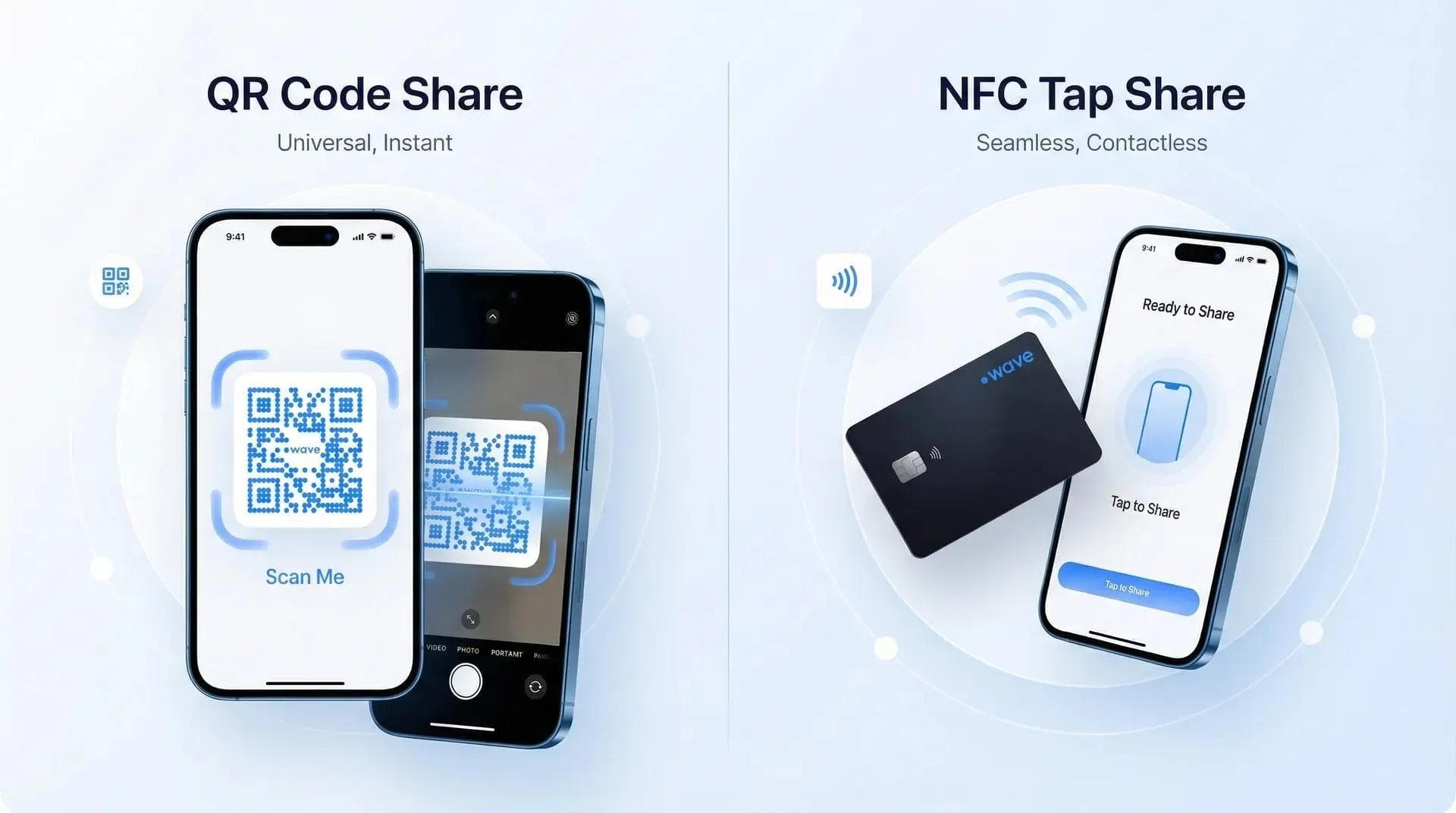
- Add a QR code: Even on paper cards, a QR code linking to your digital profile bridges the gap
- Pick the right platform (digital): Instant updates and analytics included
- Test on mobile: 75% of digital card views happen on phones - if it doesn't look great there, redesign it
If you want to build your personal brand through networking, your card is where it starts. Get the design right and every handshake carries more weight.
💡 From My Experience: The teams that follow this checklist consistently see better engagement with their digital cards. It's not complicated - it's just intentional. Clean design, complete information, zero distractions. That's the formula.
How Wave Connect Helps You Avoid These Mistakes
After reviewing 200,000+ digital business cards on our platform, we built features into Wave Connect that prevent the most common design mistakes before they happen.
Here's what that looks like in practice:
- Mobile-first design: Every Wave card is built for phone screens first, so you'll never have a card that looks great on desktop but terrible in someone's hand
- Instant updates: Changed jobs? New phone number? Update once and it applies to every card you've ever shared - no reprints, no wasted money
- Zero recipient solicitation: On any plan, we never contact the people you share your card with
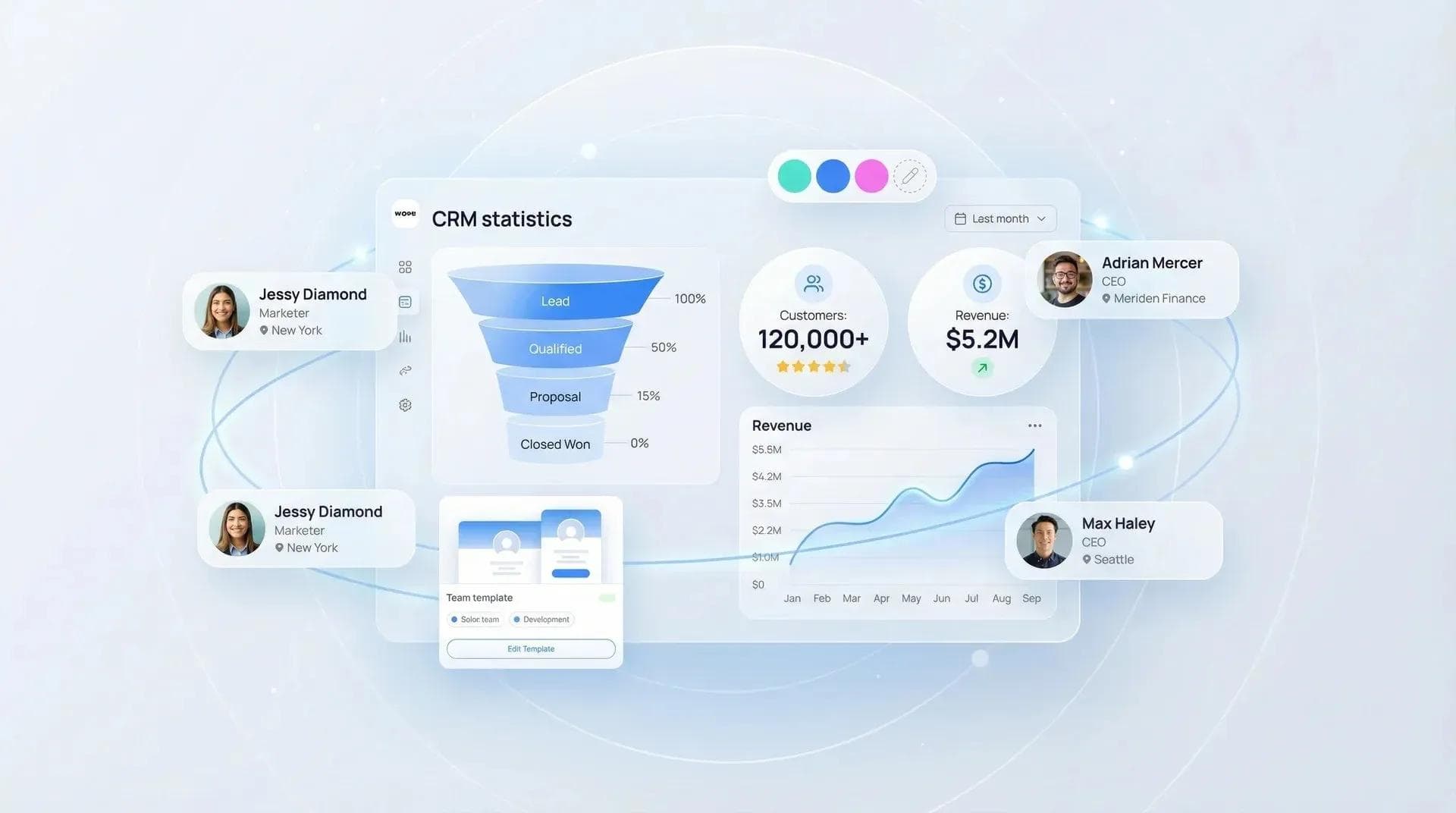
- Built-in analytics: See who viewed your card, what they clicked, and whether they saved your contact. Most platforms charge extra for this
- Apple Wallet + Google Wallet: Your card lives on the recipient's phone permanently, not in a desk drawer
If you're thinking about sharing a digital business card but aren't sure where to start, you can create a free Wave card in about two minutes. No app download required, no credit card.
Frequently Asked Questions
What is the biggest business card design mistake?
Overcrowding your card with too much information. It's the most common mistake across both paper and digital cards - keep it to the essentials and let your profile or website handle the rest.
What font size should I use on a business card?
Minimum 8pt for printed cards and 16px for digital cards. Your name should always be the largest text on the card, followed by your title and contact info.
Should I print on both sides of my business card?
Yes - leaving the back blank wastes valuable space. Use the back for a QR code to your digital card, a tagline, or a brief list of your services.
How do I avoid typos on my business card?
Proofread twice yourself, then have someone else check it. With digital cards, you can fix typos instantly - with paper, it means a full reprint.
Are digital business cards better than paper in 2026?
For most professionals, yes. Digital cards eliminate printing costs, allow instant updates, and include analytics - but many people use both paper and digital together.
Do I need a QR code on my business card?
In 2026, a QR code is practically essential. It bridges paper and digital by letting recipients instantly save your contact info to their phone.
How can I make my business card stand out?
Keep the design clean, use high-quality materials or a well-designed digital card, and include one memorable element - whether that's a bold color, a unique layout, or a QR code linking to your full profile.
Design a Business Card That Actually Works
Create a free digital business card with instant updates and built-in analytics. No app required. Takes about 2 minutes.
Create My Free CardAbout the Author: George El-Hage is the Founder of Wave Connect, an event lead capture platform with a full digital business card built in, serving 200,000+ professionals worldwide. With 6+ years helping organizations transition from paper to digital networking, George has deep expertise in what makes digital business cards successful for individuals and teams. Wave Connect is SOC 2 Type II compliant and integrates with leading CRM platforms like Salesforce, HubSpot, and Pipedrive.