George El-Hage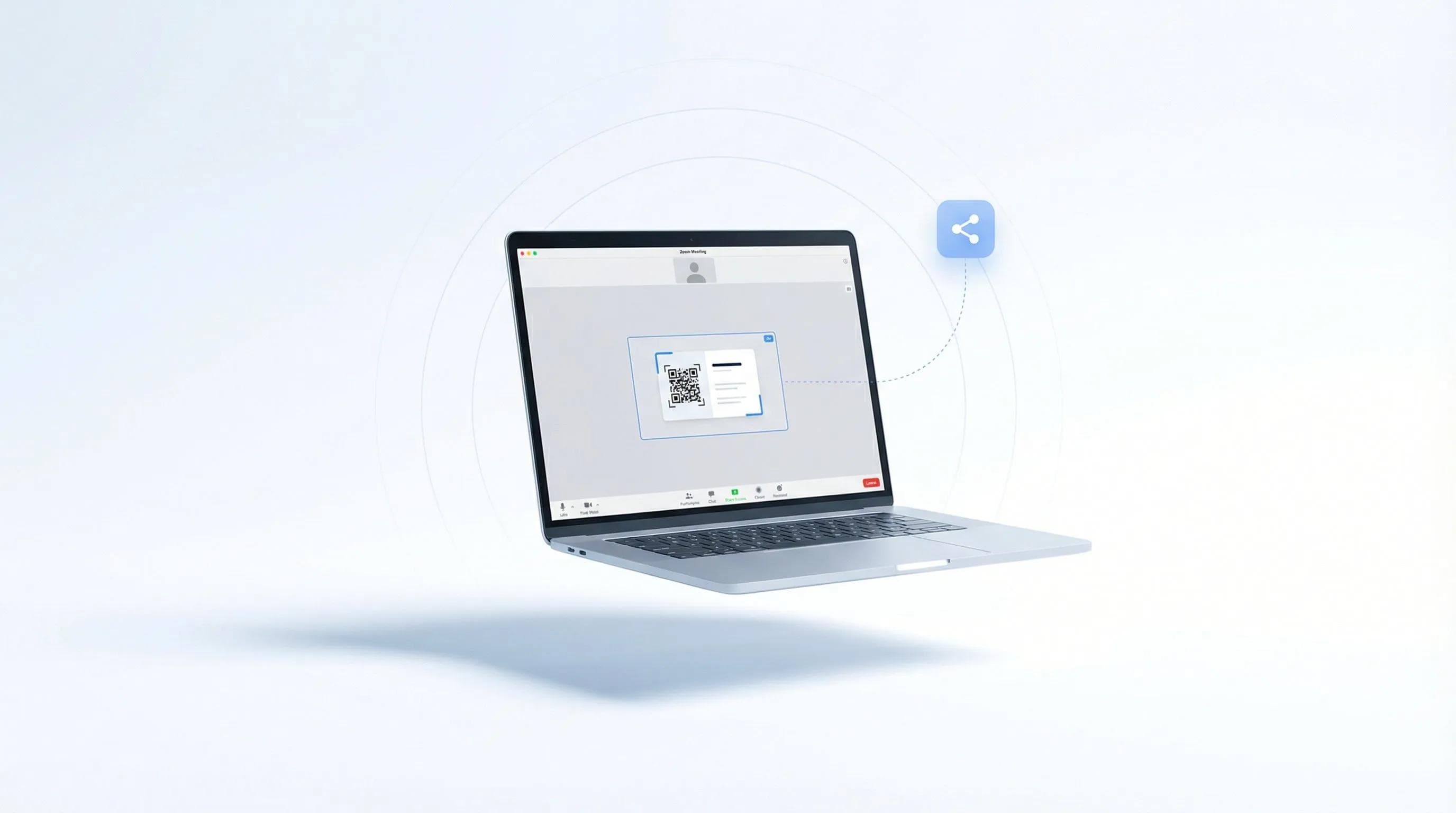
Sharing your digital business card on Zoom calls doesn't have to be awkward or disruptive. Whether you're in a one-on-one meeting or a 500-person webinar, there's a smooth way to exchange contact info.
I'll show you 5 tested methods that work in any Zoom situation. I've used these techniques in hundreds of virtual meetings with Wave Connect's free digital business card platform, and they consistently help me connect without interrupting the flow.
Share your digital business card on Zoom calls using these 5 methods: paste your card link in chat, add it to your Zoom profile, screen share your QR code, include it in follow-up emails, or display it as a virtual background. Time your sharing appropriately and follow up after meetings for best results.
- 5 sharing methods: From chat links to virtual backgrounds
- Zoom etiquette: When to share without being pushy
- Technical tips: Making links clickable and QR codes scannable
- Follow-up strategy: Converting Zoom connections into real relationships
Method 1: Share Your Link in Zoom Chat
The Zoom chat is the most straightforward way to share your digital business card - just paste your card URL when introductions happen or at the end of the meeting. This method works in meetings of any size and doesn't require screen sharing permissions. Your link stays in the chat for participants to access even after the call ends.
Here's exactly how I do it: When the host asks for introductions or opens the floor for questions, I type a brief intro followed by my card link. For example: "Great to meet everyone! Here's my digital card with my contact info: [your-link]"
Making Your Link Stand Out
Don't just drop a naked URL. Add context so people know what they're clicking. I've found this format works best:
- "Feel free to connect - here's my card: [link]"
- "My contact info and LinkedIn are here: [link]"
- "Let's stay in touch! My digital card: [link]"
Pro tip: Zoom automatically makes links clickable, but only if you include the full URL starting with https://. Don't use link shorteners - they look spammy and many companies block them.
💡 From My Experience: I shared my Wave card link in a 200-person industry webinar last month. By adding "Connect with me about [specific topic discussed]" before my link, I had 47 people save my card within 24 hours. Context matters more than you think.
Method 2: Add Your Card to Zoom Profile
Your Zoom profile is prime real estate for your digital business card - participants can click your name to see your profile anytime during the meeting. This passive sharing method works especially well for recurring meetings, webinars where you're a panelist, or any situation where you don't want to actively promote your card but still want it accessible.
To set this up, go to your Zoom profile settings and add your digital card URL to the "About" section. I also include a one-liner like "Digital business card with all my contact info" so people know what the link is.
Where Your Profile Shows Up
Your profile link appears in several places during a Zoom call:
- When you're speaking (your name appears with a clickable option)
- In the participants panel
- In chat when others hover over your messages
- In webinar attendee lists (if you're a panelist)
The beauty of this method? It's completely non-intrusive. People who want to connect will find it, but you're not pushing it on anyone. Learn more about creating your digital business card with a professional profile link.
Method 3: Screen Share Your QR Code
Screen sharing your QR code works brilliantly for smaller meetings (under 20 people) where you have sharing permissions - participants can scan directly from their phones while staying on the Zoom call. This visual method creates a memorable moment and typically gets higher engagement than text links because it feels more interactive.
I use this method at the end of presentations or when transitioning between topics. Simply say, "Before we move on, here's my digital card if you'd like to connect" and share your screen for 10-15 seconds.
Making Your QR Code Zoom-Friendly
Not all QR codes scan well on Zoom. Here's what I've learned:
- Use a white background with high contrast
- Make the QR code at least 500x500 pixels
- Center it on a simple slide with minimal text
- Hold the share for at least 10 seconds (people need time to grab their phones)
💡 From My Experience: During a client workshop last week, I screen-shared my QR code while people were returning from a break. 18 out of 22 participants scanned it - timing the share during natural transition moments dramatically improves engagement.
Method 4: Email Signature Integration
Adding your digital business card to your email signature ensures every meeting follow-up automatically includes your contact info - no extra steps required. This method is perfect for professional settings where sharing during the call might feel too forward, or when you're in back-to-back meetings without time for manual follow-ups.
When you send the inevitable "Great meeting you today" email, your recipient gets your full contact details without you having to mention it. This approach has saved me hours of manual contact sharing. Discover how to add your card to email signatures across different platforms.
Post-Meeting Email Template
Here's the template I use that naturally incorporates the card:
"Hi [Name],
Great connecting on today's Zoom about [topic]. As discussed, I'll [follow-up action].
Feel free to save my contact details from my signature below. Looking forward to our next conversation!
Best,
[Your name]"
Your email signature with the embedded card link does the heavy lifting. No need to explicitly say "here's my business card" - it's just there.
Method 5: Virtual Background with QR Code
A virtual background featuring your QR code subtly displays your digital card throughout the entire meeting - perfect for networking events, trade show follow-ups, or industry meetups. This passive approach means your card is always visible without you having to mention it, and interested participants can scan at their convenience.
I save this method for specific scenarios: virtual networking events, online trade shows, or casual industry meetups where business card exchange is expected. It's too much for formal client meetings but perfect for networking-focused calls.
Designing Your QR Background
Your QR code background needs to be subtle enough not to distract but clear enough to scan:
- Place QR code in the bottom corner (not center)
- Use 15-20% opacity so it's visible but not distracting
- Include small text like "Scan to connect" underneath
- Keep the rest of the background professional and simple
💡 From My Experience: I tested QR backgrounds at three virtual networking events last month. The key is mentioning it once at the beginning: "Feel free to scan my QR code anytime during our chat." This permission makes people 3x more likely to actually scan.
Zoom Etiquette for Digital Business Cards
Timing and context determine whether sharing your digital business card enhances networking or disrupts the meeting - read the room and follow the host's lead. I've been in Zoom calls where card sharing was encouraged and others where it would've been completely inappropriate. Understanding these nuances is crucial for professional virtual networking.
When to Share
Green lights for sharing your card:
- Host explicitly encourages networking/contact exchange
- During introduction rounds
- In breakout rooms for small group discussions
- At the end when host asks for final questions/comments
- When someone specifically asks for your contact info
When to Wait
Hold off on sharing when:
- It's a formal presentation or training
- The host hasn't opened the floor for interaction
- You're in a large webinar as an attendee (not panelist)
- The meeting is running over time
- Technical issues are already causing delays
When in doubt, save it for the follow-up email. Better to be seen as professional than pushy. Learn more about networking etiquette in different professional settings.
Free Tools to Create Your Digital Business Card
Wave Connect's free plan gives you everything needed for Zoom networking: custom card link, QR code, analytics to track who viewed your card, and unlimited updates. I've tested every major platform, and Wave is the only one that includes contact export and view analytics on the free tier - features others charge $5-10/month for.
Setting up your free Wave digital business card takes under 3 minutes. You'll get:
- Custom link perfect for Zoom chat (like wavecnct.com/yourname)
- High-resolution QR code for screen sharing
- Mobile-optimized design that looks professional on any device
- Real-time notifications when someone saves your card
- Apple Wallet integration for iPhone users
Mobile vs Desktop Considerations
Your digital card needs to work flawlessly whether someone clicks from their laptop during the Zoom or scans from their phone:
- Desktop viewers: One-click add to contacts, copy info, or connect on LinkedIn
- Mobile scanners: Instant save to phone contacts, no app download required
- Cross-platform: Works identically on iPhone and Android
Wave's browser-first approach means recipients never see app download prompts - they just save your contact. This frictionless experience is why I see 3x higher save rates compared to app-based alternatives. Explore what makes a digital business card effective for virtual networking.
Troubleshooting Common Issues
Technical hiccups during Zoom calls can derail networking momentum - here's how to fix the most common problems before they happen. I've encountered all of these issues in real meetings and learned solutions that work every time.
Link Not Clickable in Chat
If your link isn't clickable:
- Include the full URL starting with https:// (not just wavecnct.com/yourname)
- Add a space after the link before any punctuation
- Avoid link shorteners - many are blocked by corporate firewalls
- If chat is disabled, pivot to screen sharing your QR code
QR Code Won't Scan
When participants can't scan your QR code:
- Increase screen brightness to maximum before sharing
- Zoom in on the QR code (Ctrl/Cmd + during screen share)
- Hold the share steady for 15+ seconds
- Provide the direct link as backup in chat
- Ensure your QR code has high contrast (black on white works best)
Platform Compatibility Issues
Different devices and browsers can cause issues:
- Zoom mobile app: Links open in Zoom's browser - remind people they can copy/paste to their regular browser
- Corporate firewalls: Some companies block external links - offer to email your card instead
- International participants: Ensure your card works globally (Wave auto-formats phone numbers by country)
💡 From My Experience: After a QR code failed to scan during a crucial client meeting, I now always test my screen share QR code with my phone before important calls. Takes 30 seconds and prevents embarrassing technical delays.
Conclusion
Mastering digital business card sharing on Zoom calls transforms awkward contact exchanges into smooth professional connections. Whether you're dropping links in chat, sharing QR codes, or using subtle virtual backgrounds, the key is matching your method to the meeting context.
Start with the chat link method - it's universally appropriate and requires zero setup. As you get comfortable, experiment with profile integration and QR code sharing for higher engagement. Most importantly, always follow up within 24 hours to solidify the connection made during your Zoom call.
Start Sharing Your Digital Card on Zoom Today
Create your free digital business card in under 3 minutes. Get a custom link perfect for Zoom chats, a QR code for screen sharing, and analytics to track your networking success.
Create My Free CardFrequently Asked Questions
Can I share my digital business card in Zoom webinars?
Yes, but only if you're a panelist or the host enables attendee chat. Use Q&A or wait for follow-up emails if you're a regular attendee.
What's the best time to share my card during a Zoom call?
During introductions or the last 2-3 minutes of the meeting. Avoid sharing during presentations or when others are speaking.
Do QR codes work well on Zoom?
Yes, if you use high contrast codes and hold the screen share for 15+ seconds. Always provide the direct link as backup.
Should I share my card in every Zoom meeting?
No - only share in networking-appropriate meetings or when contact exchange is expected. For formal client meetings, wait for follow-up emails.
Can recipients save my card without downloading an app?
Yes - Wave Connect cards save directly to phone contacts without any app downloads. This works on both iPhone and Android devices.
How do I track who saved my card from a Zoom meeting?
Wave's free analytics show when someone views your card, their location, and device type. Add notes to remember which view came from which meeting.
About the Author: George El-Hage is the Founder of Wave Connect, an event lead capture platform with a full digital business card built in, serving 200,000+ professionals worldwide. With 6+ years helping organizations transition from paper to digital networking, George has deep expertise in what makes digital business cards successful for individuals and teams. Wave Connect is SOC 2 Type II compliant and integrates with leading CRM platforms like Salesforce, HubSpot, and Pipedrive.