> ## Documentation Index
> Fetch the complete documentation index at: https://wavecnct.com/docs/llms.txt
> Use this file to discover all available pages before exploring further.
# Teams
> Organize users into teams to keep branding consistent, roll out shared templates, and track captured leads by group.
Available on the **Teams** and **Enterprise** plans.
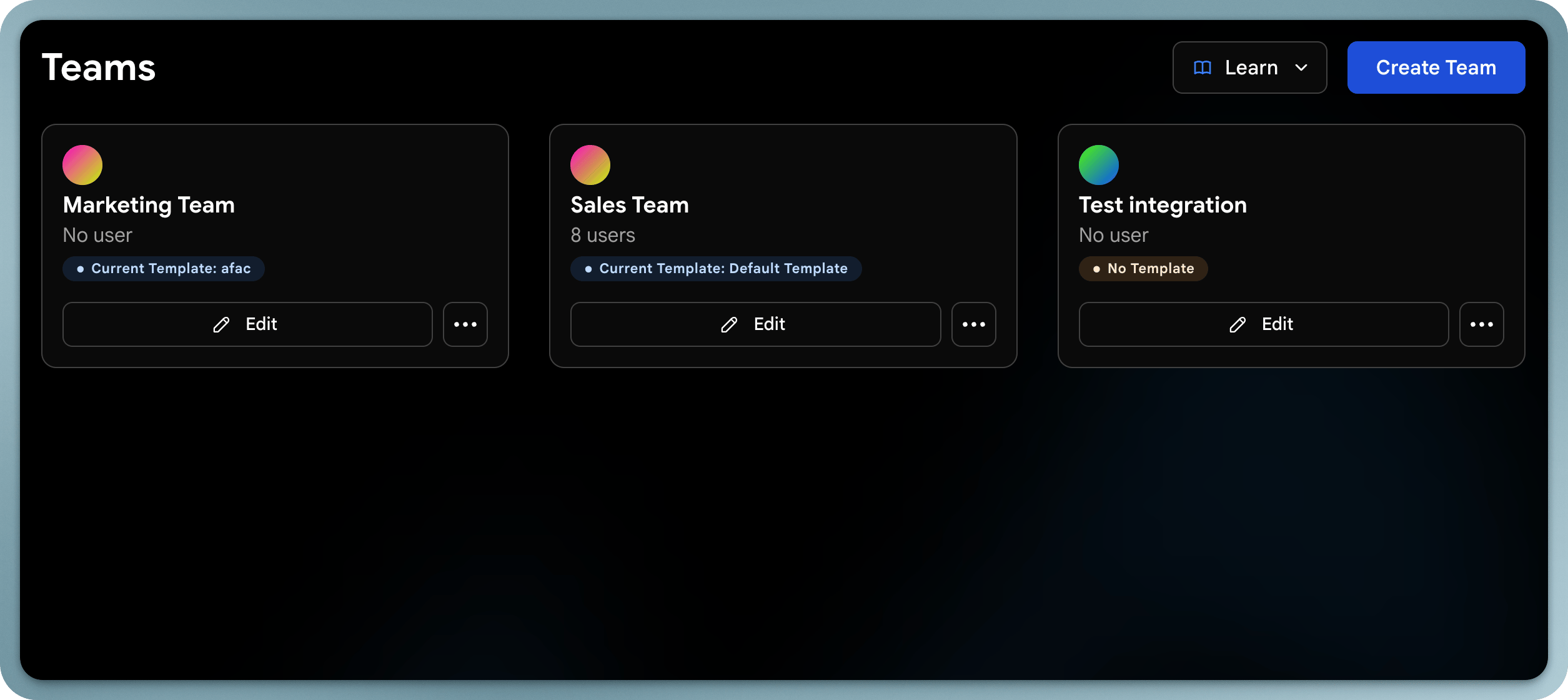 Wave for Teams lets organizations manage multiple users, standardize branding, and control how digital business cards and data are used across the company. A team is a group of users organized by department, region, or function, managed together in one place.
## Key Features
* **Centralized management**: Create, edit, and manage all team members' profiles from one place
* **Templates**: Design consistent card layouts and apply them across teams
* **Lead dashboard**: View all contacts captured by your team in a shared dashboard
* **Analytics**: Track sharing activity and engagement by team
* **Bulk operations**: Import users, assign cards, and update profiles in bulk
## Creating a Team
Log in to your Wave admin dashboard and go to the Teams section.
Click **Create Team** and give it a descriptive name (e.g., "Sales - New York", "Marketing").
Your team is created and ready to have users assigned to it.
## Assigning Users
Select the team you want to manage.
Click **Add Members** and choose from your existing users. You can select multiple at once. Users can belong to more than one team.
The selected users join the team and inherit its templates and settings.
To remove someone, open the team, find them in the member list, and select **Remove**. This only removes them from the team, not their Wave account.
## Templates & Branding
Teams use shared templates to keep every profile consistent. Templates control profile layout, logo and brand colors, and content structure. They can be assigned per team, updated in bulk, and have fields locked to enforce consistency. See [Templates](/templates/overview).
## Roles
| Role | Description | Plan |
| ------- | ----------------------------------------------------------------------------------------------------- | ---------- |
| Owner | Full account access, including billing and plan management | All |
| Admin | Manage users, templates, contacts, and settings | All |
| Manager | Can view and edit profiles and contacts for an assigned team, without access to company-wide settings | Enterprise |
| Member | Use their assigned digital business card and view their own contacts | All |
| Viewer | Can view profiles and contacts for an assigned team, with no edit access | Enterprise |
Wave for Teams lets organizations manage multiple users, standardize branding, and control how digital business cards and data are used across the company. A team is a group of users organized by department, region, or function, managed together in one place.
## Key Features
* **Centralized management**: Create, edit, and manage all team members' profiles from one place
* **Templates**: Design consistent card layouts and apply them across teams
* **Lead dashboard**: View all contacts captured by your team in a shared dashboard
* **Analytics**: Track sharing activity and engagement by team
* **Bulk operations**: Import users, assign cards, and update profiles in bulk
## Creating a Team
Log in to your Wave admin dashboard and go to the Teams section.
Click **Create Team** and give it a descriptive name (e.g., "Sales - New York", "Marketing").
Your team is created and ready to have users assigned to it.
## Assigning Users
Select the team you want to manage.
Click **Add Members** and choose from your existing users. You can select multiple at once. Users can belong to more than one team.
The selected users join the team and inherit its templates and settings.
To remove someone, open the team, find them in the member list, and select **Remove**. This only removes them from the team, not their Wave account.
## Templates & Branding
Teams use shared templates to keep every profile consistent. Templates control profile layout, logo and brand colors, and content structure. They can be assigned per team, updated in bulk, and have fields locked to enforce consistency. See [Templates](/templates/overview).
## Roles
| Role | Description | Plan |
| ------- | ----------------------------------------------------------------------------------------------------- | ---------- |
| Owner | Full account access, including billing and plan management | All |
| Admin | Manage users, templates, contacts, and settings | All |
| Manager | Can view and edit profiles and contacts for an assigned team, without access to company-wide settings | Enterprise |
| Member | Use their assigned digital business card and view their own contacts | All |
| Viewer | Can view profiles and contacts for an assigned team, with no edit access | Enterprise |