> ## Documentation Index
> Fetch the complete documentation index at: https://wavecnct.com/docs/llms.txt
> Use this file to discover all available pages before exploring further.
# Wallet
> Add your Wave card to Apple Wallet or Google Wallet for instant sharing
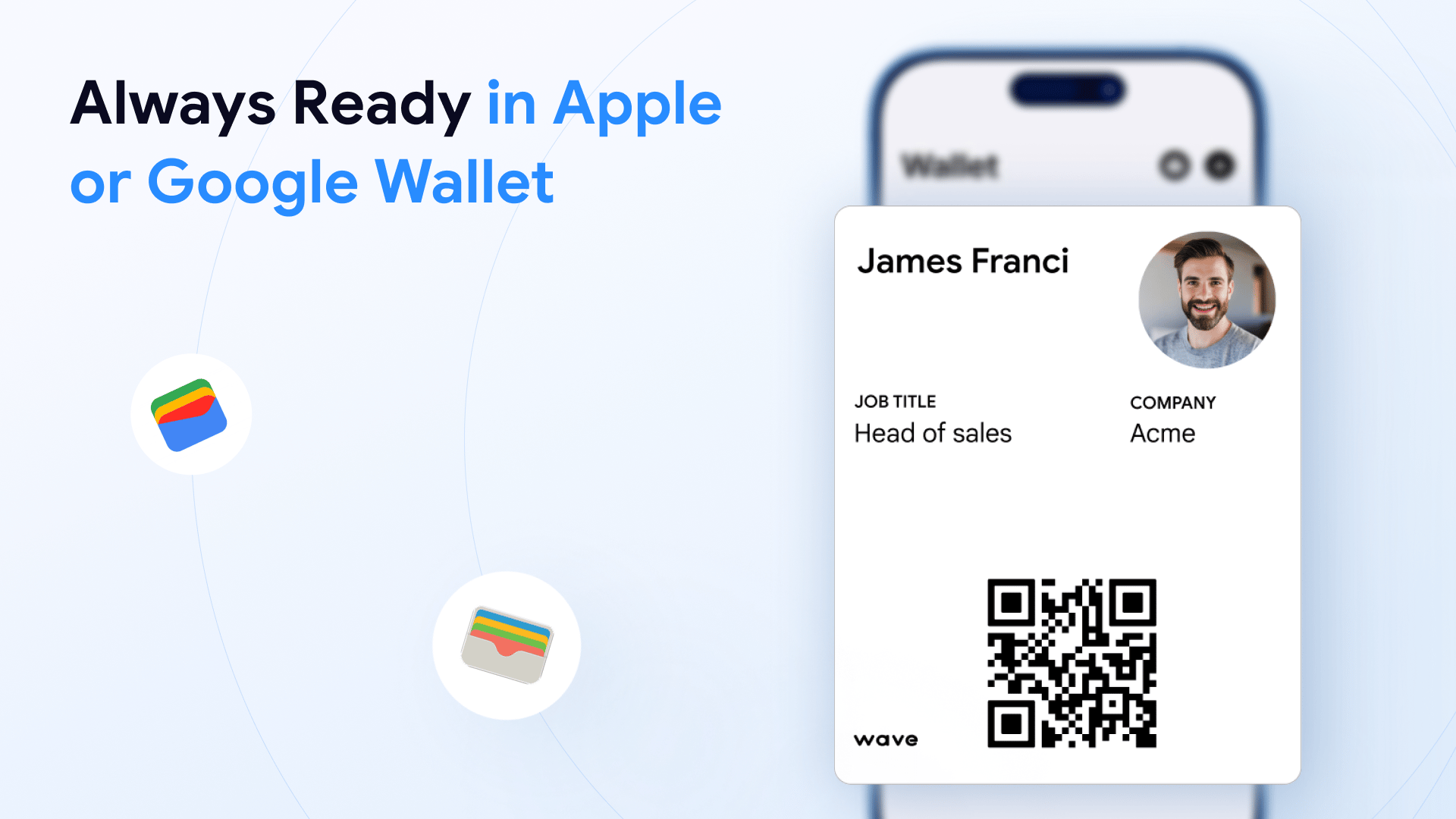 Add your Wave digital business card to Apple Wallet or Google Wallet so it's always accessible on your phone, even without opening the Wave app.
## Adding to Wallet
The **Add to Wallet** button is in the **Sharing** section of your profile.
* **Desktop**: it appears on the right side of the sharing panel
* **Mobile**: tap the share icon to reveal it
Tap the button and follow the prompt to add your card to Apple Wallet or Google Wallet.
## Sharing from Your Wallet
Once added, you can share your digital business card by:
Opening Apple Wallet or Google Wallet on your phone
Selecting your Wave card
Showing the QR code on the card to the recipient
Add your Wave digital business card to Apple Wallet or Google Wallet so it's always accessible on your phone, even without opening the Wave app.
## Adding to Wallet
The **Add to Wallet** button is in the **Sharing** section of your profile.
* **Desktop**: it appears on the right side of the sharing panel
* **Mobile**: tap the share icon to reveal it
Tap the button and follow the prompt to add your card to Apple Wallet or Google Wallet.
## Sharing from Your Wallet
Once added, you can share your digital business card by:
Opening Apple Wallet or Google Wallet on your phone
Selecting your Wave card
Showing the QR code on the card to the recipient
 ## Editing Your Wallet Card
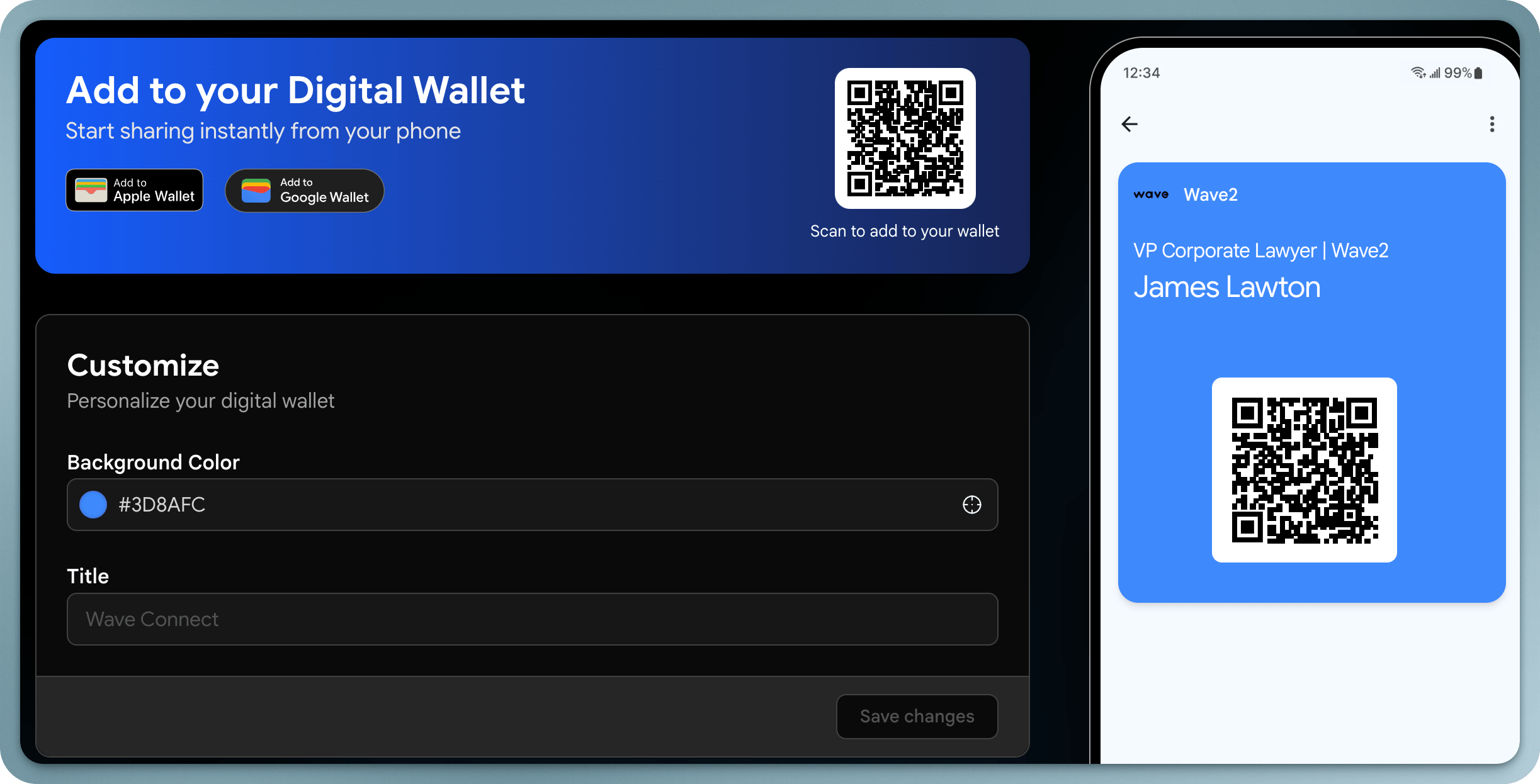
When you update your Wave profile, the changes are reflected in your Wallet card. You can also customize the appearance of your Wallet card from your Wave profile settings.
The Wallet card includes your QR code, making it easy to share even when you don't have the Wave app open.
## Editing Your Wallet Card
When you update your Wave profile, the changes are reflected in your Wallet card. You can also customize the appearance of your Wallet card from your Wave profile settings.
The Wallet card includes your QR code, making it easy to share even when you don't have the Wave app open.