> ## Documentation Index
> Fetch the complete documentation index at: https://wavecnct.com/docs/llms.txt
> Use this file to discover all available pages before exploring further.
# NFC Business Cards
> Share your digital business card with a single tap, including fully custom-branded NFC cards.
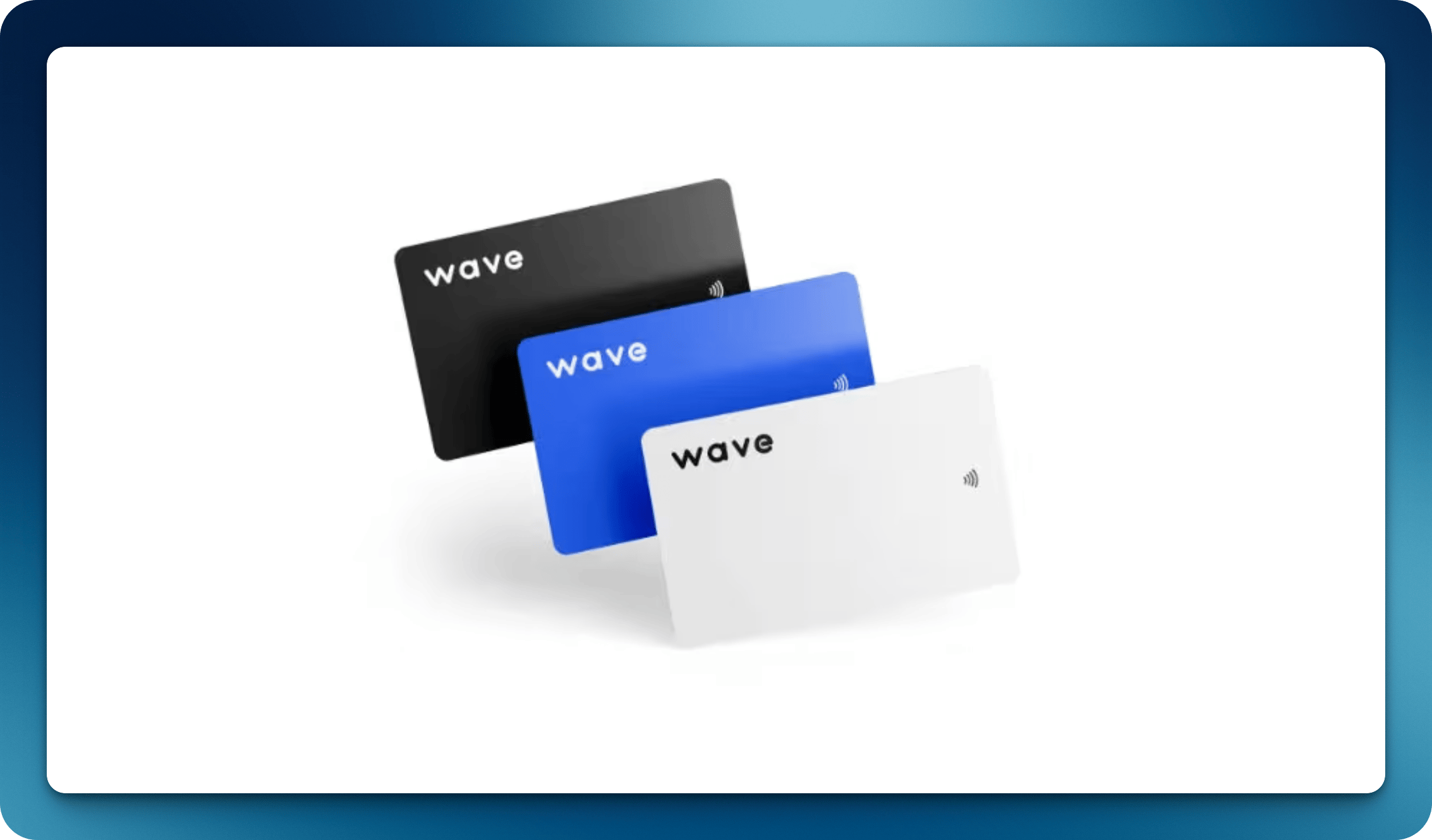
Wave NFC business cards let you share your digital profile by simply tapping your card against someone's smartphone. The recipient's phone opens your Wave profile instantly in their browser. No app required.
## How NFC Cards Work
Hold your Wave NFC card near the back of a smartphone (near the NFC reader).
The recipient's phone opens your Wave profile in their default browser.
They can save your contact information, view your links, and connect with you instantly.
## Linking Your NFC Card
After receiving your NFC card, you need to link it to your Wave profile:
Tap your new NFC card on your own smartphone.
You'll be directed to the Wave activation page.
Log in to your Wave account and link the card to your profile.
## Compatibility
NFC works with most modern smartphones:
* **iPhone**: iPhone 7 and later (iOS 14+)
* **Android**: Most Android phones with NFC enabled
If NFC isn't working on Android, make sure NFC is enabled in the recipient's phone settings. On iPhone, NFC reading is always on.
## Custom Branded Cards
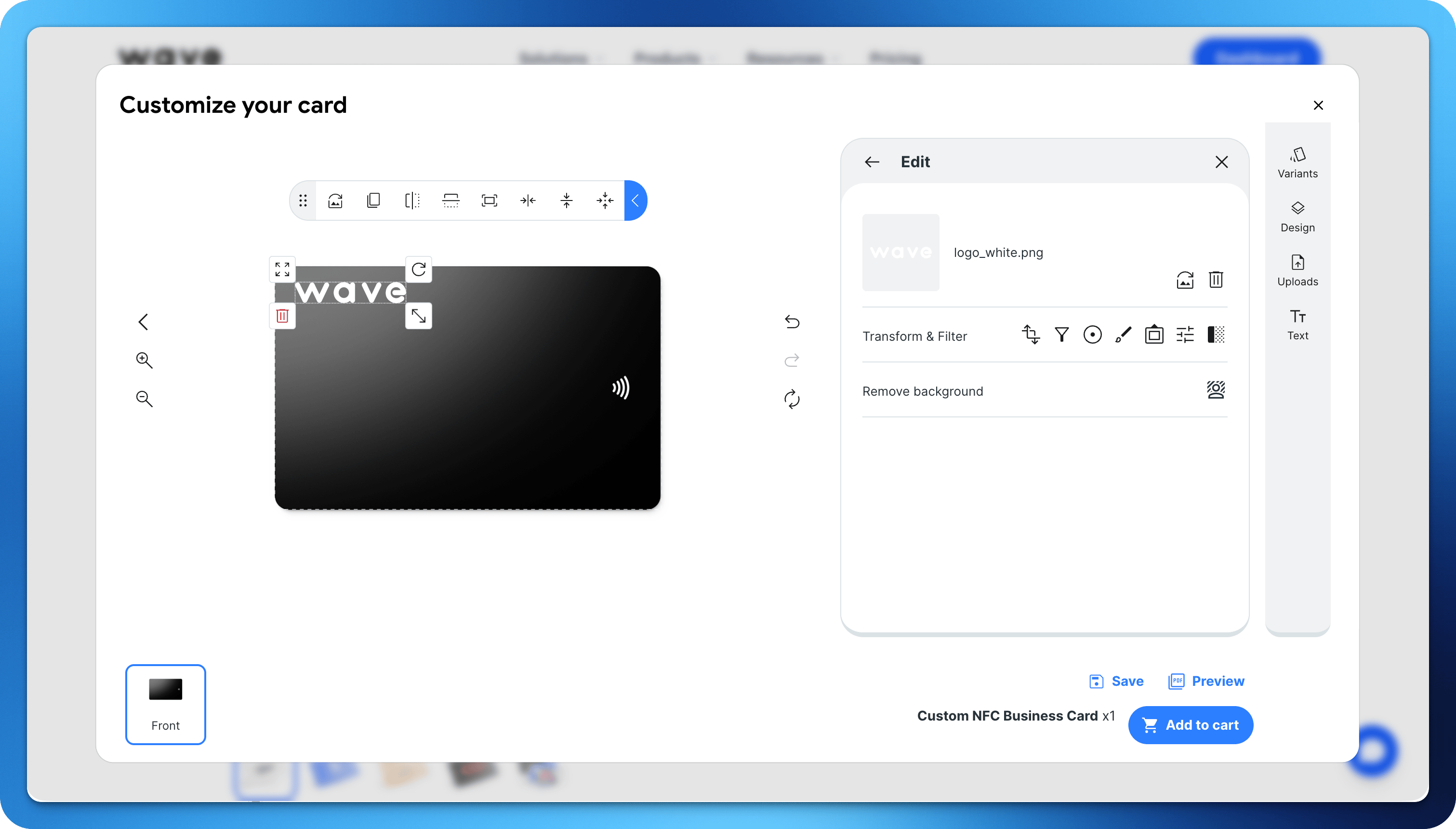
Wave custom NFC cards let you create business cards that match your brand identity. Upload your own design and Wave prints it on a high-quality NFC-enabled card.
### Design Requirements
When submitting your custom card design, follow these specifications:
| Specification | Requirement |
| ------------- | ---------------------------------------- |
| File Format | PNG, PDF, or AI |
| Resolution | 1400 DPI recommended |
| Dimensions | 3.375" x 2.125" (standard business card) |
| Bleed Area | 0.125" on all sides |
| Color Mode | CMYK |
### Ordering Custom Cards
Select from PVC or metal card options in the Wave store.
Upload your front artwork following the design requirements.
Confirm the order and quantity. Cards typically ship within 5-7 business days.
### Bulk Orders
For teams ordering 50+ cards, contact [support@wavecnct.com](mailto:support@wavecnct.com) for volume pricing and dedicated design support.
 Wave NFC business cards let you share your digital profile by simply tapping your card against someone's smartphone. The recipient's phone opens your Wave profile instantly in their browser. No app required.
## How NFC Cards Work
Wave NFC business cards let you share your digital profile by simply tapping your card against someone's smartphone. The recipient's phone opens your Wave profile instantly in their browser. No app required.
## How NFC Cards Work
 Wave custom NFC cards let you create business cards that match your brand identity. Upload your own design and Wave prints it on a high-quality NFC-enabled card.
### Design Requirements
When submitting your custom card design, follow these specifications:
| Specification | Requirement |
| ------------- | ---------------------------------------- |
| File Format | PNG, PDF, or AI |
| Resolution | 1400 DPI recommended |
| Dimensions | 3.375" x 2.125" (standard business card) |
| Bleed Area | 0.125" on all sides |
| Color Mode | CMYK |
### Ordering Custom Cards
Wave custom NFC cards let you create business cards that match your brand identity. Upload your own design and Wave prints it on a high-quality NFC-enabled card.
### Design Requirements
When submitting your custom card design, follow these specifications:
| Specification | Requirement |
| ------------- | ---------------------------------------- |
| File Format | PNG, PDF, or AI |
| Resolution | 1400 DPI recommended |
| Dimensions | 3.375" x 2.125" (standard business card) |
| Bleed Area | 0.125" on all sides |
| Color Mode | CMYK |
### Ordering Custom Cards