> ## Documentation Index
> Fetch the complete documentation index at: https://wavecnct.com/docs/llms.txt
> Use this file to discover all available pages before exploring further.
# Email Signature
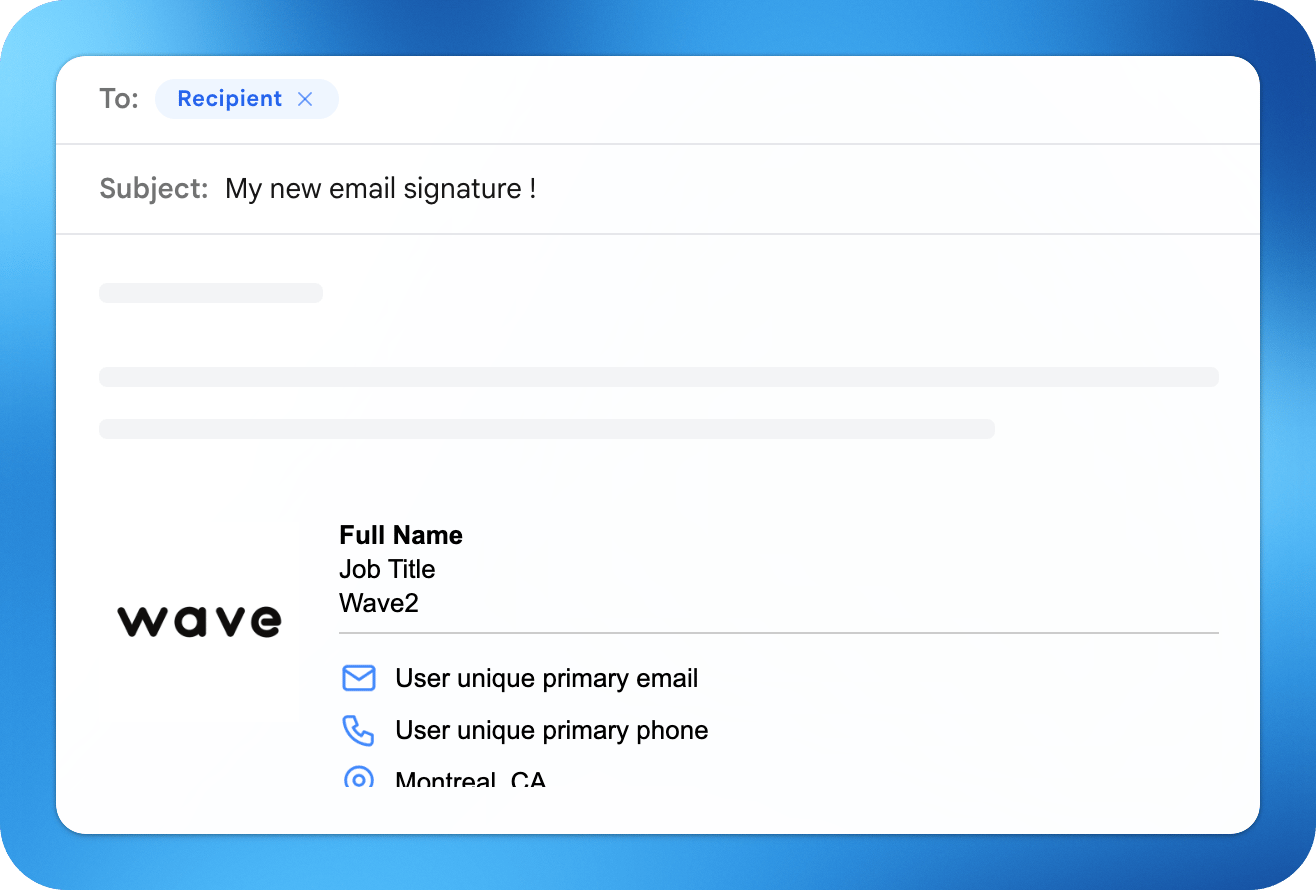
> Wave allows you to create professional, branded email signatures powered by your digital business card
Instead of manually updating signatures, Wave lets you:
* Generate a signature from your profile
* Add it to Gmail or Outlook
* Sync and manage signatures across your team
## How to Create an Email Signature
To create your email signature first choose your layout and fill out your personal details, add your socials and customize your signature.
## Add Signature to Outlook
You can install your Wave email signature in Outlook using either a **one-click install** or manual setup.
**Option 1: One-click install (recommended)**
1. Create your signature in Wave
2. Click **Install to Outlook**
3. Follow the prompts
**Option 2: Manual setup**
1. Copy your signature (HTML) from Wave
2. Open Outlook
3. Go to:
* **Settings → Mail → Compose and reply** (web)
* OR **File → Options → Mail → Signatures** (desktop)
4. Paste your signature
5. Set it as default for:
* New emails
* Replies/forwards
6. Save changes
## Add Signature to Gmail
Wave supports **one-click installation** for Gmail, making setup extremely fast.
**Option 1: One-click install (recommended)**
1. Create your signature in Wave
2. Click **Install to Gmail**
3. Authorize your Google account
4. Your signature is automatically set as default - Follow the prompts
**Option 2: Manual setup**
1. Copy your signature from Wave
2. Open Gmail
3. Go to **Settings → See all settings → Signature**
4. Paste your signature
5. Set it as default for:
* New emails
* Replies/forwards
6. Save changes
## Sync Outlook Signature to All Members
Wave allows teams to **manage and deploy email signatures centrally**.
### How Team Sync Works
With Wave Teams:
* Signatures are generated from each member's profile
* Brand elements (logo, colors, layout) are standardized
* Admins can push updates to everyone instantly
This eliminates the need to manually update signatures across your team.
### How to Sync Signatures Across Your Team
1. Upload or add team members
2. Create a signature template
3. Lock brand elements (optional)
4. Deploy signatures to all users
5. Push updates anytime
 Instead of manually updating signatures, Wave lets you:
* Generate a signature from your profile
* Add it to Gmail or Outlook
* Sync and manage signatures across your team
## How to Create an Email Signature
To create your email signature first choose your layout and fill out your personal details, add your socials and customize your signature.
## Add Signature to Outlook
You can install your Wave email signature in Outlook using either a **one-click install** or manual setup.
**Option 1: One-click install (recommended)**
1. Create your signature in Wave
2. Click **Install to Outlook**
3. Follow the prompts
**Option 2: Manual setup**
1. Copy your signature (HTML) from Wave
2. Open Outlook
3. Go to:
* **Settings → Mail → Compose and reply** (web)
* OR **File → Options → Mail → Signatures** (desktop)
4. Paste your signature
5. Set it as default for:
* New emails
* Replies/forwards
6. Save changes
## Add Signature to Gmail
Wave supports **one-click installation** for Gmail, making setup extremely fast.
**Option 1: One-click install (recommended)**
1. Create your signature in Wave
2. Click **Install to Gmail**
3. Authorize your Google account
4. Your signature is automatically set as default - Follow the prompts
**Option 2: Manual setup**
1. Copy your signature from Wave
2. Open Gmail
3. Go to **Settings → See all settings → Signature**
4. Paste your signature
5. Set it as default for:
* New emails
* Replies/forwards
6. Save changes
## Sync Outlook Signature to All Members
Wave allows teams to **manage and deploy email signatures centrally**.
### How Team Sync Works
With Wave Teams:
* Signatures are generated from each member's profile
* Brand elements (logo, colors, layout) are standardized
* Admins can push updates to everyone instantly
This eliminates the need to manually update signatures across your team.
### How to Sync Signatures Across Your Team
1. Upload or add team members
2. Create a signature template
3. Lock brand elements (optional)
4. Deploy signatures to all users
5. Push updates anytime
Instead of manually updating signatures, Wave lets you:
* Generate a signature from your profile
* Add it to Gmail or Outlook
* Sync and manage signatures across your team
## How to Create an Email Signature
To create your email signature first choose your layout and fill out your personal details, add your socials and customize your signature.
## Add Signature to Outlook
You can install your Wave email signature in Outlook using either a **one-click install** or manual setup.
**Option 1: One-click install (recommended)**
1. Create your signature in Wave
2. Click **Install to Outlook**
3. Follow the prompts
**Option 2: Manual setup**
1. Copy your signature (HTML) from Wave
2. Open Outlook
3. Go to:
* **Settings → Mail → Compose and reply** (web)
* OR **File → Options → Mail → Signatures** (desktop)
4. Paste your signature
5. Set it as default for:
* New emails
* Replies/forwards
6. Save changes
## Add Signature to Gmail
Wave supports **one-click installation** for Gmail, making setup extremely fast.
**Option 1: One-click install (recommended)**
1. Create your signature in Wave
2. Click **Install to Gmail**
3. Authorize your Google account
4. Your signature is automatically set as default - Follow the prompts
**Option 2: Manual setup**
1. Copy your signature from Wave
2. Open Gmail
3. Go to **Settings → See all settings → Signature**
4. Paste your signature
5. Set it as default for:
* New emails
* Replies/forwards
6. Save changes
## Sync Outlook Signature to All Members
Wave allows teams to **manage and deploy email signatures centrally**.
### How Team Sync Works
With Wave Teams:
* Signatures are generated from each member's profile
* Brand elements (logo, colors, layout) are standardized
* Admins can push updates to everyone instantly
This eliminates the need to manually update signatures across your team.
### How to Sync Signatures Across Your Team
1. Upload or add team members
2. Create a signature template
3. Lock brand elements (optional)
4. Deploy signatures to all users
5. Push updates anytime