> ## Documentation Index
> Fetch the complete documentation index at: https://wavecnct.com/docs/llms.txt
> Use this file to discover all available pages before exploring further.
# Manage Contacts
> View, organize, and follow up with your connections in Wave
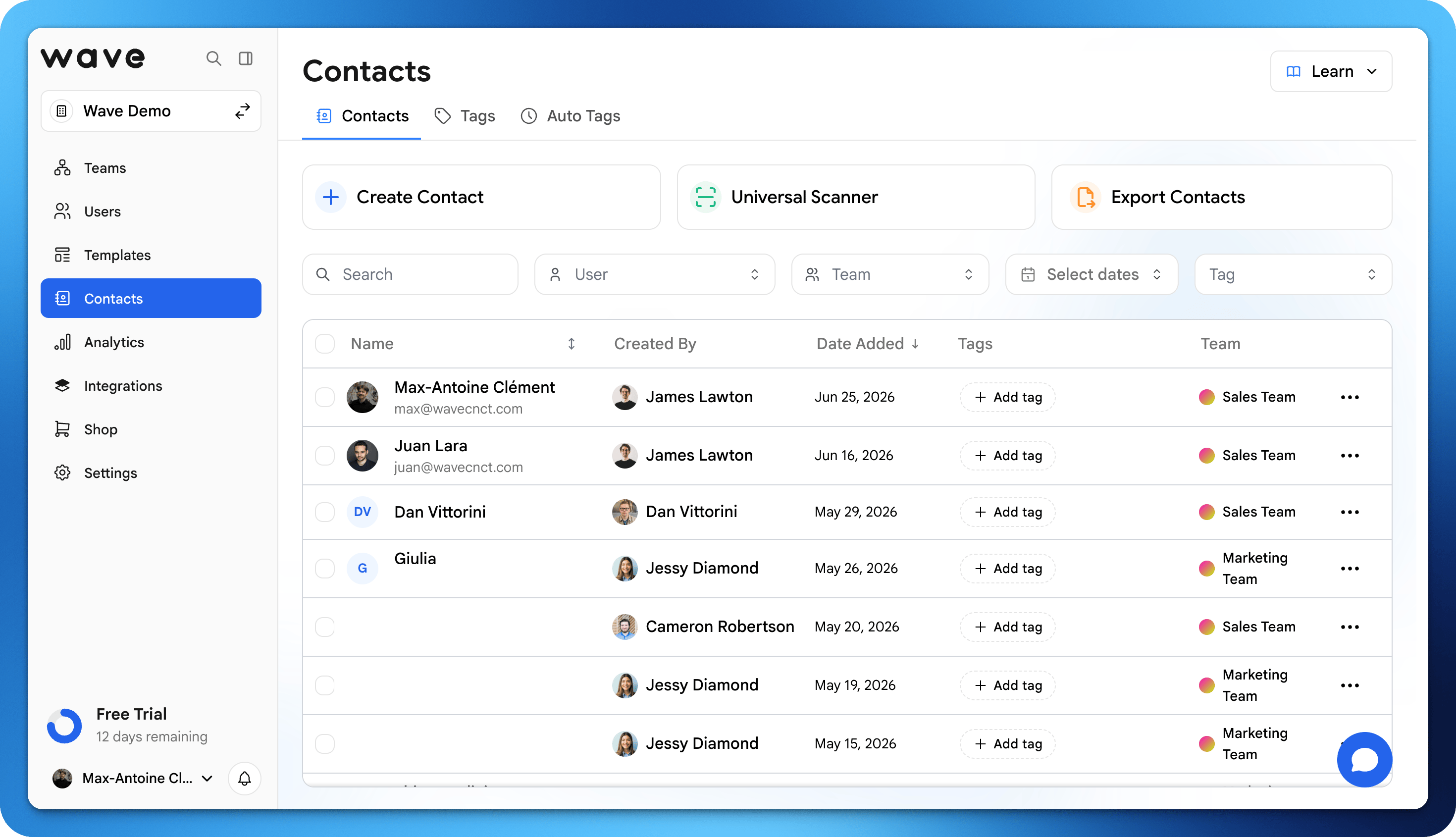 Every time someone exchanges contact information with you through Wave, their details are saved to your contacts. The Contacts tab is your personal CRM for managing all your networking connections.
## Viewing Your Contacts
Navigate to the **Contacts** tab in your Wave dashboard to see everyone who has shared their information with you. Each contact entry includes:
* Name and contact details they shared
* Date and time of the exchange
* Tags you've applied
* Notes you've added
## Searching Contacts
Use the search bar to quickly find contacts by name, company, email, or any other field. You can also filter contacts by:
* **Tags**: Filter by custom tags you've created
* **Date**: Find contacts from specific time periods
* **Source**: See where the exchange happened (NFC, QR code, etc.)
## Editing Contact Details
You can update a contact's information at any time:
Click on the contact you want to edit.
Modify any field: name, email, phone, company, or notes.
Your updates are saved and synced across your account.
## Saving Contacts to Your Device
You can export individual contacts directly to your phone's address book. Open a contact and tap **Save to Device** to add them to your phone contacts.
## Export Contacts
Export your Wave contacts to a CSV file for importing into your CRM, email marketing tools, spreadsheets, or any other platform.
Open the Contacts tab in your Wave dashboard.
Choose specific contacts or select all. You can filter by tags before exporting.
Choose the CSV export option.
A CSV file with all contact fields is downloaded to your device.
## Exported Fields
The CSV export includes all available contact data:
| Field | Description |
| :--------- | :--------------------------- |
| First Name | Contact's first name |
| Last Name | Contact's last name |
| Email | Email address |
| Phone | Phone number |
| Company | Company or organization |
| Job Title | Role or position |
| Tags | Comma-separated list of tags |
| Date | Date of the contact exchange |
| Notes | Any notes you've added |
## CRM Sync
For automatic contact syncing (instead of manual CSV exports), consider connecting Wave to your CRM. Wave integrates with Salesforce, HubSpot, Pipedrive, and more. See [Integrations](/integrations/overview) for setup instructions.
Every time someone exchanges contact information with you through Wave, their details are saved to your contacts. The Contacts tab is your personal CRM for managing all your networking connections.
## Viewing Your Contacts
Navigate to the **Contacts** tab in your Wave dashboard to see everyone who has shared their information with you. Each contact entry includes:
* Name and contact details they shared
* Date and time of the exchange
* Tags you've applied
* Notes you've added
## Searching Contacts
Use the search bar to quickly find contacts by name, company, email, or any other field. You can also filter contacts by:
* **Tags**: Filter by custom tags you've created
* **Date**: Find contacts from specific time periods
* **Source**: See where the exchange happened (NFC, QR code, etc.)
## Editing Contact Details
You can update a contact's information at any time:
Click on the contact you want to edit.
Modify any field: name, email, phone, company, or notes.
Your updates are saved and synced across your account.
## Saving Contacts to Your Device
You can export individual contacts directly to your phone's address book. Open a contact and tap **Save to Device** to add them to your phone contacts.
## Export Contacts
Export your Wave contacts to a CSV file for importing into your CRM, email marketing tools, spreadsheets, or any other platform.
Open the Contacts tab in your Wave dashboard.
Choose specific contacts or select all. You can filter by tags before exporting.
Choose the CSV export option.
A CSV file with all contact fields is downloaded to your device.
## Exported Fields
The CSV export includes all available contact data:
| Field | Description |
| :--------- | :--------------------------- |
| First Name | Contact's first name |
| Last Name | Contact's last name |
| Email | Email address |
| Phone | Phone number |
| Company | Company or organization |
| Job Title | Role or position |
| Tags | Comma-separated list of tags |
| Date | Date of the contact exchange |
| Notes | Any notes you've added |
## CRM Sync
For automatic contact syncing (instead of manual CSV exports), consider connecting Wave to your CRM. Wave integrates with Salesforce, HubSpot, Pipedrive, and more. See [Integrations](/integrations/overview) for setup instructions.