> ## Documentation Index
> Fetch the complete documentation index at: https://wavecnct.com/docs/llms.txt
> Use this file to discover all available pages before exploring further.
# Events
> Organize contacts by event with a location, description, and automatic tagging
Available on the **Teams** and **Enterprise** plans.
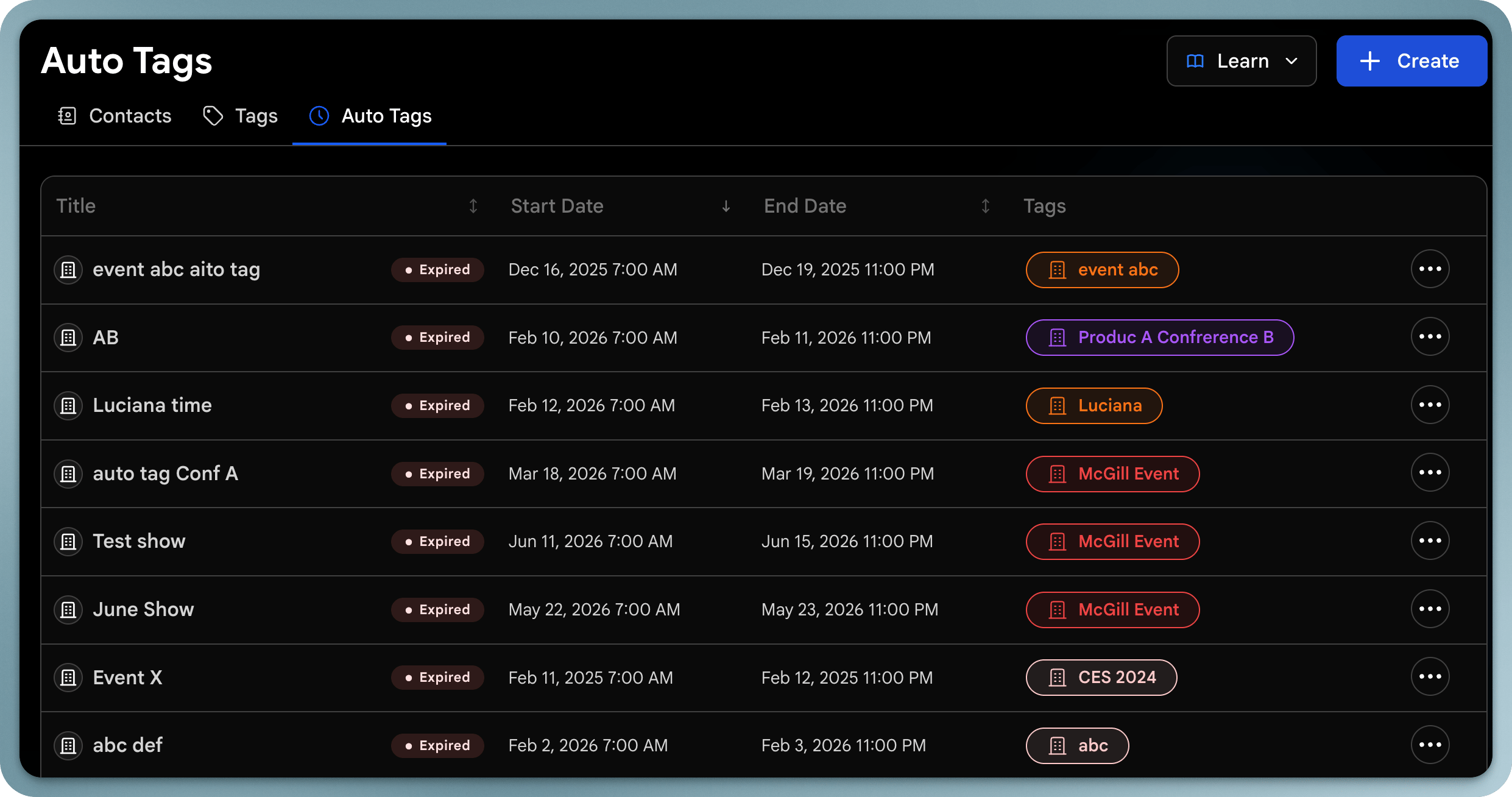 Events let you organize the contacts you capture around the real-world events you attend: conferences, trade shows, meetups, and campaigns. While an event is running, every contact you capture can be tagged automatically, so your leads are sorted the moment you collect them.
## What an Event Includes
Every event has:
* **Name**: what the event is called
* **Location**: where the event takes place
* **Date range**: the start and end dates the event runs
* **Picture**: a cover image for the event
* **Description**: a rich description with the details that matter
* **Auto-tag**: an optional tag automatically applied to contacts captured during the event
## Creating an Event
Go to **Contacts** and open **Events**.
Click **Create event**.
Enter the event name, location, date range, cover picture, and description.
Leave the auto-tag toggle on to automatically tag every contact captured during the event. By default, the tag uses the event's name.
Save the event. While it's live, new contacts are tagged automatically.
## The Events Page
Events are shown as cards, grouped by status:
* **Active**: events happening now
* **Upcoming**: events that haven't started yet
* **Past**: events that have ended
## Event Details
Open an event to see everything about it in one place:
* **Analytics**: performance for the event's date range
* **Contacts**: every contact captured with the event's tag
* **Details**: edit the event's name, date range, location, tag, and other details at any time
## Best practices
* Keep auto-tagging on so leads are sorted as you collect them
* Use a clear, recognizable name: it becomes the tag
* Review an event's contacts and analytics afterward to measure results
Events let you organize the contacts you capture around the real-world events you attend: conferences, trade shows, meetups, and campaigns. While an event is running, every contact you capture can be tagged automatically, so your leads are sorted the moment you collect them.
## What an Event Includes
Every event has:
* **Name**: what the event is called
* **Location**: where the event takes place
* **Date range**: the start and end dates the event runs
* **Picture**: a cover image for the event
* **Description**: a rich description with the details that matter
* **Auto-tag**: an optional tag automatically applied to contacts captured during the event
## Creating an Event
Go to **Contacts** and open **Events**.
Click **Create event**.
Enter the event name, location, date range, cover picture, and description.
Leave the auto-tag toggle on to automatically tag every contact captured during the event. By default, the tag uses the event's name.
Save the event. While it's live, new contacts are tagged automatically.
## The Events Page
Events are shown as cards, grouped by status:
* **Active**: events happening now
* **Upcoming**: events that haven't started yet
* **Past**: events that have ended
## Event Details
Open an event to see everything about it in one place:
* **Analytics**: performance for the event's date range
* **Contacts**: every contact captured with the event's tag
* **Details**: edit the event's name, date range, location, tag, and other details at any time
## Best practices
* Keep auto-tagging on so leads are sorted as you collect them
* Use a clear, recognizable name: it becomes the tag
* Review an event's contacts and analytics afterward to measure results