> ## Documentation Index
> Fetch the complete documentation index at: https://wavecnct.com/docs/llms.txt
> Use this file to discover all available pages before exploring further.
# Bulk Import Users
> Add multiple users to Wave at once using a file, a directory integration, or SCIM provisioning
Available on the **Teams** and **Enterprise** plans.
 Wave gives you three ways to add multiple users at once. Go to **Users** and click **Add users** to choose a method.
## Import from File
Upload a CSV or Excel file to create users in bulk. This is the most common method for a one-time import.
In the import assistant, download the **Excel** or **CSV** template. Use this file — do not create your own.
Each row is one user. Only **first name, last name, and account email** are required. All other fields are optional.
* Do not add or remove any columns
* Include the country code for all phone numbers (e.g. +1, +44)
Drag and drop your completed file, or click **Select file**. Wave processes it and shows you a preview.
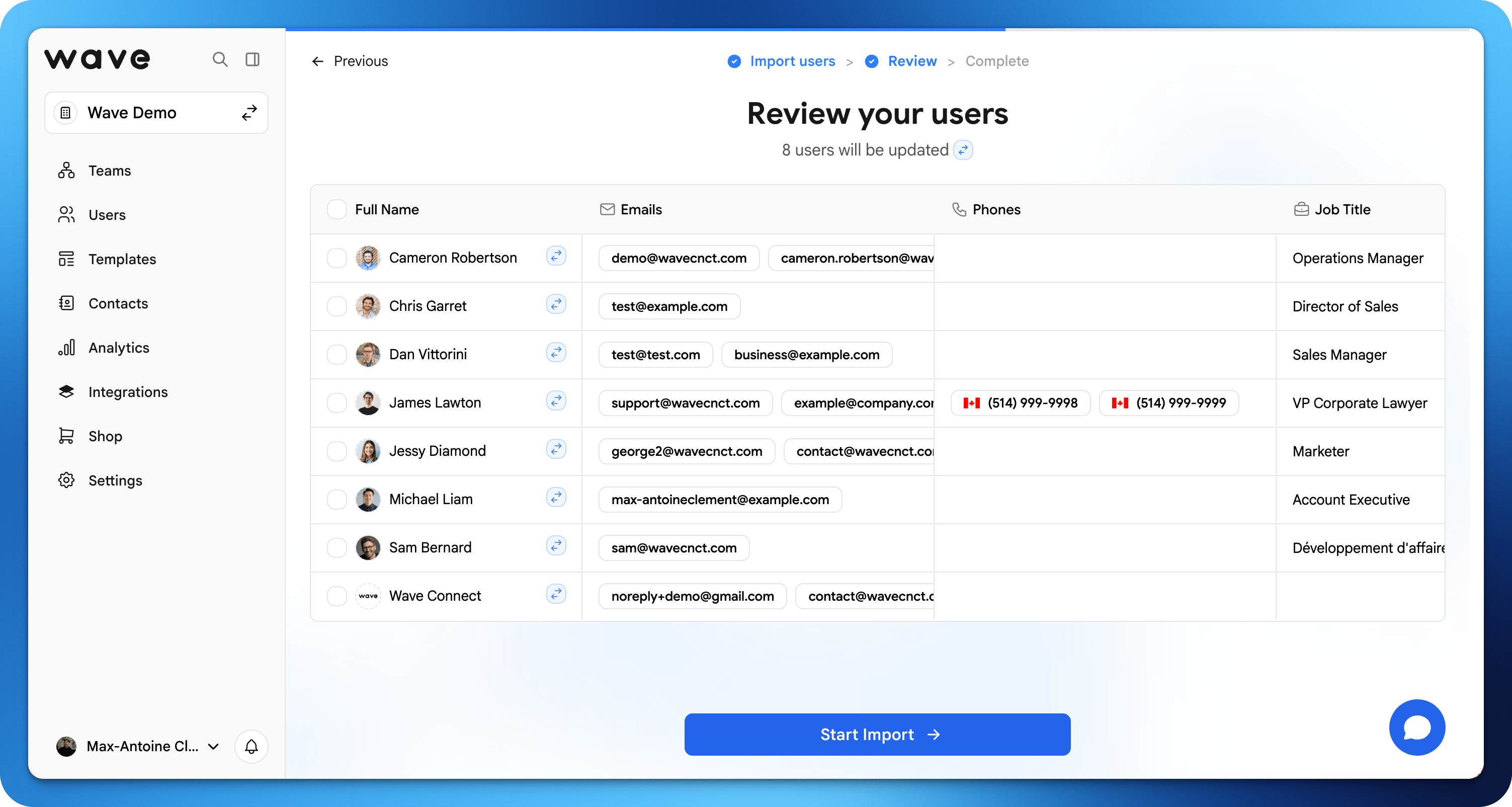
Check the preview table for any highlighted errors. You can edit fields directly in the table before confirming.
Click **Import**. Each user receives an email invitation to activate their Wave profile.
## Import from Google or Microsoft
If your organization uses Google Workspace or Microsoft, you can import users directly from your directory. Wave reads basic profile information only — it does not access emails, files, or any other data.
In the import assistant, choose **Import from Google** or **Import from Microsoft**.
Authenticate with your Google or Microsoft account to authorize the connection. You can remove access at any time.
Wave imports your directory users and shows them in a preview table. Review and make any edits before confirming.
Click **Import**. Each user receives an email invitation to activate their Wave profile.
If your Google Workspace or Microsoft integration is already connected, Wave uses the existing connection automatically.
## User Provisioning (SCIM)
Available on the **Enterprise** plan.
SCIM provisioning automates user lifecycle management through your identity provider. When you add or remove users in your IdP, Wave accounts are created or deactivated automatically — no manual import needed.
See [Directory Sync (SCIM)](/security/scim) to set it up.
Wave gives you three ways to add multiple users at once. Go to **Users** and click **Add users** to choose a method.
## Import from File
Upload a CSV or Excel file to create users in bulk. This is the most common method for a one-time import.
In the import assistant, download the **Excel** or **CSV** template. Use this file — do not create your own.
Each row is one user. Only **first name, last name, and account email** are required. All other fields are optional.
* Do not add or remove any columns
* Include the country code for all phone numbers (e.g. +1, +44)
Drag and drop your completed file, or click **Select file**. Wave processes it and shows you a preview.
Check the preview table for any highlighted errors. You can edit fields directly in the table before confirming.
Click **Import**. Each user receives an email invitation to activate their Wave profile.
## Import from Google or Microsoft
If your organization uses Google Workspace or Microsoft, you can import users directly from your directory. Wave reads basic profile information only — it does not access emails, files, or any other data.
In the import assistant, choose **Import from Google** or **Import from Microsoft**.
Authenticate with your Google or Microsoft account to authorize the connection. You can remove access at any time.
Wave imports your directory users and shows them in a preview table. Review and make any edits before confirming.
Click **Import**. Each user receives an email invitation to activate their Wave profile.
If your Google Workspace or Microsoft integration is already connected, Wave uses the existing connection automatically.
## User Provisioning (SCIM)
Available on the **Enterprise** plan.
SCIM provisioning automates user lifecycle management through your identity provider. When you add or remove users in your IdP, Wave accounts are created or deactivated automatically — no manual import needed.
See [Directory Sync (SCIM)](/security/scim) to set it up.